Home Blog Page 15

What are Google Ads scripts?

Google Ads Scripts are a powerful automation tool that allows advertisers to control and optimize their Google Ads accounts using simple JavaScript code. These scripts provide direct access to your campaign data and enable you to automate routine tasks, generate reports, make bulk changes, and interact with external data sources like Google Sheets or external APIs. Scripts are especially useful for advertisers managing multiple campaigns or large-scale accounts, as they reduce manual work, improve accuracy, and allow for real-time decision-making. Whether you’re a small business managing your own ads or an agency handling dozens of clients, Google Ads Scripts can save time and improve performance. Google Ads Scripts are written in JavaScript and executed inside Google’s infrastructure. You can run them on-demand or schedule them to run at specific times, such as hourly, daily, weekly, or monthly.

Key Features of Google Ads Scripts

  1. Automation of Repetitive Tasks
    Scripts automate time-consuming tasks such as pausing low-performing ads, adjusting bids, changing budgets, or generating reports.

  2. Customization
    Scripts can be tailored to fit any account’s goals. You define the logic based on your business needs, like adjusting bids only during specific hours or pausing keywords with low Quality Score.

  3. Bulk Changes
    Make large-scale updates to campaigns, ad groups, ads, keywords, and more. For example, changing all CPC bids across 1,000 keywords can be done in seconds.

  4. Integration with External Data Sources
    Scripts can fetch data from or push data to Google Sheets, Google Analytics, third-party APIs, or even send custom email alerts.

  5. Scheduling and Triggers
    You can schedule scripts to run at certain times, allowing you to automate tasks like sending daily reports or pausing ads every Friday night.

Types of Scripts in Google Ads

  1. Account-Level Scripts
    These scripts operate within a single Google Ads account. They’re used for campaign management, reporting, optimization, and automation specific to one account.

  2. MCC (Manager Account) Scripts
    These scripts run across multiple accounts from a single Google Ads Manager Account (My Client Center). They are helpful for agencies or advertisers managing multiple client accounts.

Common Use Cases for Google Ads Scripts

  1. Pause Ads with Low CTR or Conversions
    Automatically pause ads that haven’t met performance goals over a certain period.

  2. Bid Adjustments Based on Time or Weather
    Increase bids during peak hours or pause campaigns during bad weather, especially for location-sensitive businesses like cafes or travel.

  3. Budget Monitoring
    Get alerts when your daily spend is about to exceed a threshold or automatically reduce bids when budget is tight.

  4. 404 Page Checker
    Pause ads that point to broken landing pages to avoid wasting money.

  5. Ad Customization
    Use Google Sheets to update prices or product names in real time across hundreds of ads.

  6. Reporting and Dashboards
    Automatically create performance reports in Google Sheets with visuals, charts, and traffic trends.

  7. Keyword Management
    Pause underperforming keywords or label high-performing ones for further optimization.

  8. Campaign Health Check
    Monitor Quality Scores, active ad statuses, impression shares, etc., and receive alerts if performance dips.

Example Script Use Case for ZARA

ZARA is running multiple ad campaigns for its online clothing store across different categories—men, women, kids, accessories, and seasonal collections. ZARA wants to ensure all ad headlines and descriptions reflect updated pricing, ads don’t lead to out-of-stock or error pages, and daily reports are emailed to their marketing team. The following scripts help ZARA automate operations:

Script 1: Pause Ads Leading to Broken Pages
This script checks all destination URLs in ZARA’s ads and pauses any ad with a 404 or redirect error, saving ad spend from being wasted on non-functional pages.

Script 2: Update Prices in Ads via Google Sheet
ZARA’s marketing team updates pricing in a Google Sheet every morning. The script pulls this data and updates all relevant ad headlines and descriptions in real time to keep ads accurate.

Script 3: Daily Campaign Report Email
Every day at 9 AM, a script compiles impressions, clicks, conversions, and cost data into a Google Sheet and automatically emails it to the ZARA marketing manager for daily performance review.

Example Script Use Case for Skechers

Skechers is running Google Ads for its footwear line, targeting audiences by location, shoe type (running, casual, formal), and promotions (discounts and seasonal sales). Skechers wants to automate price updates, pause ads when product availability is low, and run weekend-only ad campaigns.

Script 1: Inventory Check and Pause Low-Stock Ads
This script is connected to Skechers’ internal product feed and pauses ads if inventory drops below a certain level to avoid customer frustration and wasted ad spend.

Script 2: Weekend Campaign Scheduler
This script activates Skechers’ special weekend-only discount campaigns every Friday at 6 PM and pauses them on Monday morning automatically.

Script 3: Performance-Based Bid Adjuster
A script checks daily performance data and increases bids on campaigns with high conversion rates while decreasing bids on those that are underperforming.

Advantages of Google Ads Scripts

  1. Efficiency
    They reduce the time spent on manual account management tasks. What would take hours can now be done in minutes.

  2. Accuracy
    Scripts eliminate human error in repetitive updates like bid changes or ad copy edits, ensuring consistency.

  3. Customization
    You can build a script to meet any unique requirement, whether it’s based on sales performance, location, or time of day.

  4. Speed
    Scripts process bulk actions faster than the manual Google Ads interface, allowing thousands of changes in seconds.

  5. Real-Time Reaction
    They can respond instantly to real-time data—automatically pausing underperforming ads, reacting to traffic spikes, or changing ad status based on weather, events, or inventory updates.

  6. Better Use of Resources
    Marketing teams can focus on strategy, creative, and analysis rather than spending time on repetitive tasks.

  7. Improved ROI
    By responding to performance changes quickly and keeping ads relevant and error-free, scripts help boost the return on ad spend.

Conclusion

Google Ads Scripts are a versatile, efficient, and scalable tool for any advertiser looking to automate and optimize their advertising workflow. Brands like ZARA and Skechers can use scripts to manage dynamic pricing, update creatives, monitor site performance, run time-sensitive campaigns, and generate insightful reports—without the need for constant manual oversight. With just a basic understanding of JavaScript and Google Ads structure, advertisers can unlock the full potential of their campaigns and streamline complex processes into automated, high-impact actions. Whether you’re managing one campaign or hundreds, integrating Google Ads Scripts into your workflow is a smart move toward smarter, data-driven advertising.
What is cross-device conversion tracking?

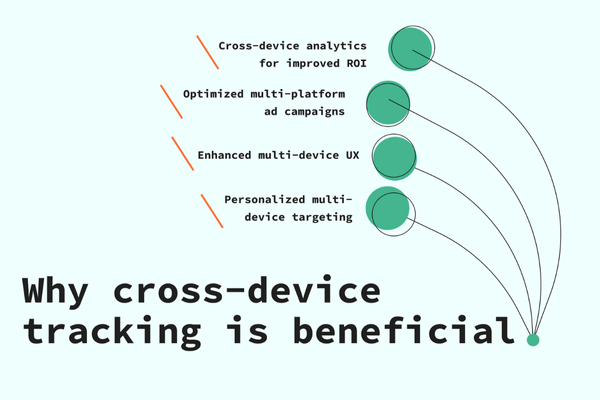
Cross-device conversion tracking is a feature in Google Ads that allows advertisers to track when a user clicks on an ad on one device (like a smartphone) and completes the conversion on another device (like a laptop or tablet). This technology bridges the gap between multiple devices a user might use in their buying journey, providing a more complete and accurate picture of ad performance.

In today’s digital world, consumers often start researching products on one device and finish the purchase on another. For example, someone may search for a product on their mobile phone while commuting, click on a Google ad, and later, at home, complete the purchase on their desktop computer. Without cross-device tracking, that conversion might not be attributed to the original ad click, which can lead to under-reporting of your ad’s true performance.

Cross-device conversion tracking uses Google’s signed-in data, cookies, and device signals to estimate and connect user behavior across devices while maintaining user privacy.

How It Works:

  1. A user is signed into their Google account on multiple devices (like their mobile, tablet, and desktop).

  2. They click your Google ad on one device, say a smartphone.

  3. Later, using the same Google account, they return to your site on another device, like a laptop, and complete a purchase or conversion.

  4. Google identifies this as a cross-device journey and records the conversion in your Google Ads account, attributing it back to the original click.

Why It’s Important:

  1. More Accurate Data: Helps advertisers understand the full user journey and attribute conversions correctly.

  2. Better Optimization: With accurate data, automated bidding strategies like Maximize Conversions or Target CPA/ROAS perform better.

  3. Informed Budget Allocation: Lets you invest in campaigns that are truly driving results—even if those conversions don’t happen on the same device.

  4. Performance Insight: Helps you understand how users interact with your brand across devices and optimize your campaigns accordingly.

Example:
Let’s say a customer sees a ZARA Google Search ad on their mobile phone while traveling. They click the ad and browse the summer collection but don’t purchase. Later that evening, they open ZARA’s website again on their laptop at home and place an order for ₹3,000. With cross-device tracking enabled, Google Ads will attribute the conversion to the original mobile ad click, allowing ZARA to understand that their mobile ads are influencing conversions, even when the final action happens elsewhere.

How to Enable Cross-Device Conversion Tracking:
You don’t need to set it up separately—it is automatically included in your “All Conversions” column in Google Ads if:

  • You’ve set up conversion tracking

  • You’re using Google’s global site tag or Google Tag Manager

  • Your campaigns meet a certain traffic threshold for privacy and data accuracy

  • You have enough data for Google to make cross-device connections

To see these conversions:

  1. Sign in to Google Ads

  2. Go to the Conversions section under Tools & Settings

  3. View metrics under the “All Conversions” column

  4. You can also add a segment by “Device” to compare conversion sources

Conclusion:
Cross-device conversion tracking is essential for modern advertisers. It provides deeper insights into how people engage with ads across smartphones, tablets, and desktops. It helps brands like ZARA or any business understand the true influence of their ads and make smarter, data-driven decisions about where and how to advertise.

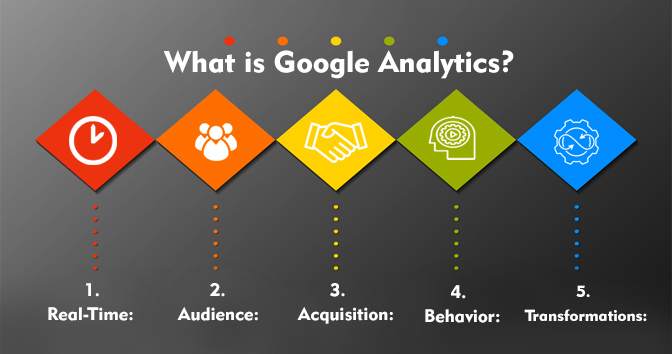
How to set up Google Ads with Google Analytics?

Integrating Google Ads with Google Analytics is an essential step for advertisers who want deeper insights into user behavior after ad clicks, accurate conversion tracking, better audience creation, and improved campaign performance. When you link Google Ads with Google Analytics, you can view your ad performance within Analytics and vice versa. You’ll also be able to import Analytics goals, audiences, and ecommerce transactions into Google Ads, making it easier to optimize your marketing efforts based on actual user behavior on your website.

Here is a complete step-by-step guide on how to properly set up Google Ads with Google Analytics:

Step 1: Prerequisites Before Linking
Before you begin the linking process, make sure of the following:

  1. You have admin access to both your Google Ads and Google Analytics accounts.

  2. The correct Google Analytics property (preferably GA4) is set up on your website.

  3. Google Ads account is properly running and active.

  4. Your Google Analytics property is collecting data.

Step 2: Link Google Ads with Google Analytics (GA4)
To link your Google Ads account to your Google Analytics GA4 property:

  1. Go to Google Analytics.

  2. Click Admin (bottom-left corner).

  3. Under the Property column, select the GA4 property you want to link.

  4. Click Google Ads Links.

  5. Click the blue Link button.

  6. Select the Google Ads account(s) you want to link.

  7. Click Confirm.

  8. Enable the toggle for “Enable Personalized Advertising” (if you want remarketing).

  9. Enable “Auto-tagging” if it’s not already enabled. Auto-tagging helps Google Ads pass detailed information about each click to Analytics.

  10. Click Next, then Submit to complete the linking process.

After successful linking, you will be able to:

  • View Google Ads campaign performance within Analytics.

  • Import Analytics conversions and audiences into Google Ads.

Step 3: Import Google Analytics Goals (Conversions) into Google Ads
Once your accounts are linked, you can import goals or conversions from Google Analytics into Google Ads.

  1. Sign in to your Google Ads account.

  2. Click on Tools & Settings in the top menu.

  3. Under Measurement, click Conversions.

  4. Click the + New conversion action button.

  5. Choose Import.

  6. Select Google Analytics (GA4) as the source.

  7. Choose the specific goals/events you want to import (like form submissions, purchases, etc.).

  8. Click Import and Continue.

  9. Click Done.

This allows Google Ads to count Analytics-based goals as conversions. This is particularly useful if you’re tracking specific user actions like purchases, sign-ups, button clicks, or scroll depth.

Step 4: Enable Google Signals in Analytics (Optional but Recommended)
To get more accurate data and better audience-building capabilities, enable Google Signals in Analytics:

  1. Go to Admin in Google Analytics.

  2. Under the Property column, click Data SettingsData Collection.

  3. Enable Google Signals.

  4. Accept the terms and conditions.

Google Signals allow you to use remarketing and cross-device tracking, enhancing your ability to target users more effectively in Google Ads.

Step 5: Set Up Remarketing Audiences in Google Analytics and Share with Google Ads
You can create specific audiences in Google Analytics and use them directly in Google Ads campaigns for better targeting.

To create and share audiences:

  1. Go to your GA4 property.

  2. Click Admin.

  3. Under Property, click Audiences.

  4. Click New Audience.

  5. Choose a template or create a custom audience, for example:

    • Users who viewed a product page but didn’t purchase.

    • Users who spent more than 3 minutes on your site.

  6. Name your audience.

  7. Ensure you share the audience with your linked Google Ads account.

  8. Click Save.

Once shared, these audiences will be available in your Google Ads account under the Audiences section and can be applied to campaigns, ad groups, or remarketing campaigns.

Step 6: View Google Ads Data in Google Analytics
Now that the linking is done, you can view Google Ads performance metrics directly in Analytics.

  1. Open your GA4 property.

  2. Click Reports > Acquisition > Traffic Acquisition.

  3. In the report, use the Session source/medium dimension to find Google Ads traffic (usually shown as google / cpc).

  4. You can also create custom explorations under Explore to analyze Google Ads traffic, bounce rates, engaged sessions, conversions, and user paths in more detail.

Step 7: Use UTM Parameters if Auto-tagging Is Not Used
Although auto-tagging is highly recommended, if you disable it for any reason, you must manually tag your Google Ads URLs using UTM parameters such as:

  • utm_source=google

  • utm_medium=cpc

  • utm_campaign=summer_sale

  • utm_term=women_dresses

  • utm_content=text_ad1

Manual tagging ensures Google Analytics can still track where the traffic comes from, even without auto-tagging.

Benefits of Integrating Google Ads with Google Analytics

  1. Better Conversion Tracking
    By importing Analytics goals into Google Ads, you can track what happens after someone clicks your ad—whether they purchased, signed up, or bounced.

  2. Audience Creation and Remarketing
    You can create precise remarketing audiences based on Analytics user behavior and target them with tailored Google Ads campaigns.

  3. Cross-platform Insights
    Understand how your Google Ads traffic performs across devices, locations, and channels within the context of your overall website performance.

  4. More Accurate Bidding
    When Google Ads has access to Analytics conversions and user engagement data, it can make smarter bidding decisions—especially when using automated bidding strategies like Maximize Conversions or Target ROAS.

  5. Improved Budget Allocation
    By analyzing how each campaign performs in Analytics, you can allocate your Google Ads budget to the campaigns, keywords, and audiences that are generating the best return.

  6. Enhanced User Journey Understanding
    You can use multi-channel funnel reports and user path analysis to understand how Google Ads interacts with other marketing channels in driving conversions.

  7. Smarter Campaign Optimization
    Use bounce rate, average session duration, and engaged sessions per user as optimization indicators to improve your ads, landing pages, and audience targeting.

Example: Zara Setting Up Google Ads with Google Analytics

Let’s take an example of ZARA launching a Google Ads campaign for their new summer collection.

  • They have set up a GA4 property on www.zara.com.

  • They run a Google Display campaign targeting fashion shoppers in Mumbai.

  • They link their Google Ads account with GA4.

  • They import an Analytics event goal called “Purchase Completed” into Google Ads.

  • They create a custom audience in GA4: users who visited the summer collection page but did not make a purchase.

  • They run a remarketing campaign targeting that audience with discount ads.

  • They use Analytics reports to track how many users who came from Google Ads ended up purchasing, spending how much time on-site, and what products they viewed.

This setup enables ZARA to see not only how many users clicked on the ads, but also whether they engaged with the site, added products to cart, or completed a purchase. They can optimize campaigns for more profitable results and reallocate budget from underperforming keywords or ad groups to high-performing ones.

Conclusion

Linking Google Ads with Google Analytics is not just a technical step—it’s a strategic move that allows advertisers to measure true ROI, optimize ad spend, and understand user behavior beyond the click. Whether you’re a small business owner or a large brand like ZARA, this integration is essential for running data-driven, result-oriented campaigns. It gives you a full picture of the customer journey, from ad click to final conversion, helping you make better decisions and improve overall marketing performance.

What are custom intent audiences?

Custom Intent Audiences (now part of Custom Segments) are a powerful audience targeting option in Google Ads that allow advertisers to define their ideal audience based on specific keywords, URLs, and apps related to their products or services. These audiences are created manually by the advertiser and help Google identify users who are actively researching or showing intent to purchase similar products.

Instead of relying solely on Google’s predefined audience segments, Custom Intent Audiences let you tell Google exactly what kind of people you want to target. Google then uses machine learning to find people who are most likely to be interested in your offer based on their search behavior, website visits, app usage, and YouTube activity.

They are typically used in Display, YouTube, and Discovery campaigns and are excellent for reaching high-intent users who haven’t yet visited your website but are in the market for similar products.

Example of Custom Intent Audiences for a Brand like ZARA

Let’s say ZARA is running a Display campaign to promote its new summer collection of women’s dresses. ZARA wants to reach potential customers who are actively looking for similar products but haven’t yet interacted with the ZARA website.

ZARA’s marketing team can create a Custom Intent Audience using the following keywords and URLs:

Custom Intent Audience Name: Women’s Summer Fashion Shoppers

Keywords to Include:

  • buy summer dresses online

  • women’s cotton dresses

  • latest summer fashion 2025

  • stylish maxi dresses for women

  • affordable women’s summer outfits

  • floral dresses online shopping

  • light summer wear for ladies

  • beachwear collection for women

URLs to Include:

Apps to Include:

  • Myntra app

  • H&M app

  • Ajio app

  • Pinterest (fashion boards)

  • Instagram (for fashion and outfit inspirations)

Once this audience is created, Google will target users who are:

  • Searching for these types of dresses

  • Browsing the listed websites or apps

  • Watching YouTube videos related to summer fashion, try-on hauls, or shopping reviews

These users may not have visited ZARA’s website yet, but their behavior indicates they are actively in the market for the type of clothing ZARA sells.

This allows ZARA to:

  • Serve highly targeted banner or video ads

  • Capture the attention of new potential customers

  • Drive traffic to the summer collection landing page

  • Improve return on ad spend by focusing on people with strong intent


Benefits of Using Custom Intent Audiences for ZARA

  1. Highly Relevant Targeting – Reaches people who are showing intent to buy similar products.

  2. Brand Discovery – Attracts users who haven’t yet heard of ZARA but are open to discovering new fashion brands.

  3. Budget Efficiency – Spends more effectively by narrowing down to high-intent users.

  4. Competitive Advantage – Targets customers browsing competitor websites or related apps.

  5. Cross-Platform Reach – Works across Display, YouTube, and Discovery campaigns for broader visibility.

In summary, Custom Intent Audiences let ZARA go beyond general demographic targeting and focus directly on people most likely to be interested in and ready to buy ZARA’s fashion products—making ad campaigns more effective and result-oriented.

What is a placement report?

What is a Placement Report in Google Ads?

A Placement Report in Google Ads is a detailed performance report that shows where (on which websites, mobile apps, or YouTube channels/videos) your ads have been displayed when you’re running a Display Network or YouTube campaign. This report helps advertisers gain visibility into the specific placements that are driving ad impressions, clicks, and conversions. It also allows advertisers to take action—either by excluding poor-performing placements or by targeting high-performing ones specifically in their campaigns.

This tool is particularly useful for controlling the quality and context of your ads. Since the Display Network and YouTube consist of millions of sites and channels, the placement report becomes essential in ensuring your ads are appearing in brand-safe, relevant, and performance-effective environments.

Google automatically selects placements for your ads based on your targeting methods, like keywords, topics, demographics, custom audiences, and more. But after your ads run for a while, you can use the placement report to analyze which specific locations (web pages, YouTube videos, or mobile apps) are performing best or worst—and then optimize accordingly.

Let’s now dive deeper into all aspects of a placement report, including how to access it, interpret it, and take action on it.

How to Access the Placement Report

To view the placement report in your Google Ads account, follow these steps:

  1. Sign in to your Google Ads account.

  2. Click on the Campaigns or Ad groups tab.

  3. Choose the Display or Video campaign you want to analyze.

  4. In the left-hand menu, click Content > Placements.

  5. Then click on Where ads showed.

This section will show you a list of websites, YouTube videos, YouTube channels, and mobile apps where your ads have been served.

You can filter, sort, and download the data based on date range, campaign, or performance metrics such as:

  • Impressions

  • Clicks

  • Click-Through Rate (CTR)

  • Conversions

  • Cost per Conversion

  • Cost per Click (CPC)

  • Conversion Rate

What Information is Shown in a Placement Report?

  1. Placement Name/URL
    This tells you the domain, app, or YouTube video/channel where your ad was shown. For example, you may see placements like youtube.com, indiatimes.com, angrybirds.app, etc.

  2. Ad Format
    Indicates whether the ad was a text ad, responsive display ad, image ad, or video ad.

  3. Impressions
    The number of times your ad was shown on that specific placement.

  4. Clicks
    The number of clicks your ad received on that placement.

  5. CTR (Click Through Rate)
    This metric shows how often people clicked on your ad after seeing it on a specific placement.

  6. Conversions
    The number of completed actions taken (like purchases, sign-ups, etc.) that were attributed to that placement.

  7. Cost
    How much you spent on each placement.

  8. Conversion Rate
    Indicates how effective the placement was in driving actual results.

Why is a Placement Report Important?

Understanding where your ads are shown is just as important as knowing how they perform. Here are some reasons why the placement report is crucial:

  1. Brand Safety
    You may find your ad appeared on a controversial site or next to inappropriate content on YouTube. The report allows you to identify and exclude such placements to protect your brand image.

  2. Performance Optimization
    Some websites or apps might bring clicks but no conversions—indicating irrelevant traffic. You can pause or exclude these to save your budget.

  3. Refining Targeting
    If certain placements are performing well—i.e., generating conversions at a low cost—you can add them as Managed Placements to bid higher and gain more impressions from them.

  4. Budget Efficiency
    By eliminating low-performing placements, you make better use of your advertising budget, focusing only on channels that bring actual business value.

  5. Insights for Scaling
    You may notice that some blogs, YouTube channels, or apps convert better. This could inspire you to run custom display campaigns targeting similar platforms.

Example of a Placement Report Analysis

Let’s imagine you are running a Display campaign for your e-commerce brand www.mehtagroccers.com, which sells grocery items online. You want to promote a special offer: 20% off on all products for first-time users in Mumbai.

After running your campaign for a week, you check your Placement Report.

Here’s a sample of what the report shows:

Placement Impressions Clicks CTR Conversions CPC Conversion Rate
youtube.com 10,000 200 2.0% 5 ₹10.00 2.5%
foodbloggerindia.com 5,000 150 3.0% 20 ₹8.00 13.3%
freegamesdownload.app 8,000 100 1.25% 0 ₹12.00 0.0%
mumbainewsdaily.in 4,000 120 3.0% 10 ₹9.00 8.3%
kidslearningvideos.youtubechannel 6,000 80 1.33% 0 ₹11.50 0.0%

From this data, we can make several observations and decisions:

  • Exclude freegamesdownload.app and kidslearningvideos.youtubechannel
    These placements have low CTR and zero conversions, which suggests wasted spend. They’re irrelevant to your grocery brand.

  • Keep and possibly bid higher on foodbloggerindia.com
    This placement has a very high conversion rate and low cost per conversion. It’s highly relevant and performs well.

  • Review youtube.com as a general category
    While YouTube has a decent number of clicks, its conversion rate is low. You might want to narrow down YouTube placements to relevant food or grocery-related content.

  • Retain mumbainewsdaily.in
    Since your offer is for Mumbai users, this site likely has local traffic. The conversion rate is good, and CPC is reasonable.

With this insight, you refine your Display campaign to:

  • Exclude low-performing placements

  • Increase bids on high-performing sites

  • Focus on contextual and geographic relevance

  • Improve your return on ad spend (ROAS)

How to Exclude Poor Performing Placements

After identifying unwanted placements, you can exclude them at the campaign or ad group level:

  1. Go to your Placements tab.

  2. Click Where ads showed.

  3. Select the placements to exclude.

  4. Click the Edit drop-down menu.

  5. Choose Exclude from ad group or Exclude from campaign.

You can also use placement exclusion lists to block entire categories or domains across multiple campaigns.

Managed Placements vs Automatic Placements

  • Automatic Placements:
    Google uses your targeting settings to decide where your ads appear. This includes keywords, topics, demographics, interests, etc.

  • Managed Placements:
    You choose exactly which websites, apps, or YouTube channels to show ads on. This gives you more control over the performance.

After reviewing your placement report, you may decide to convert some automatic placements to managed ones to improve targeting and ROI.

Best Practices When Using Placement Reports

  1. Review Regularly
    Check your placement reports weekly, especially in the early stages of your campaign.

  2. Be Selective but Not Over-Restrictive
    Exclude only after enough data is gathered. A few bad days may not mean a placement is always bad.

  3. Look Beyond Just CTR
    High click-through rates don’t always lead to conversions. Focus on cost per acquisition and conversion rate.

  4. Use Negative Keywords Alongside Placement Exclusions
    This helps avoid irrelevant content even on placements you haven’t seen yet.

  5. Pair with Audience Insights
    Combine placement data with audience insights to build custom audiences based on behavior and preference.

  6. Create Custom Segments
    If a category of placements (like recipe blogs) performs well, create custom segments to scale similar campaigns.

Conclusion

The Placement Report in Google Ads is an invaluable tool that gives advertisers deep visibility into where their ads are appearing and how those placements are performing. Especially for campaigns on the Display Network and YouTube, this report plays a key role in managing ad spend, protecting brand image, and maximizing return on investment.

It empowers advertisers to take actionable decisions—such as excluding poor-performing or irrelevant placements, bidding more aggressively on high-performing ones, and refining targeting strategies. By regularly analyzing this report, businesses can ensure their ads are reaching the right people in the right contexts, leading to better engagement and conversions.

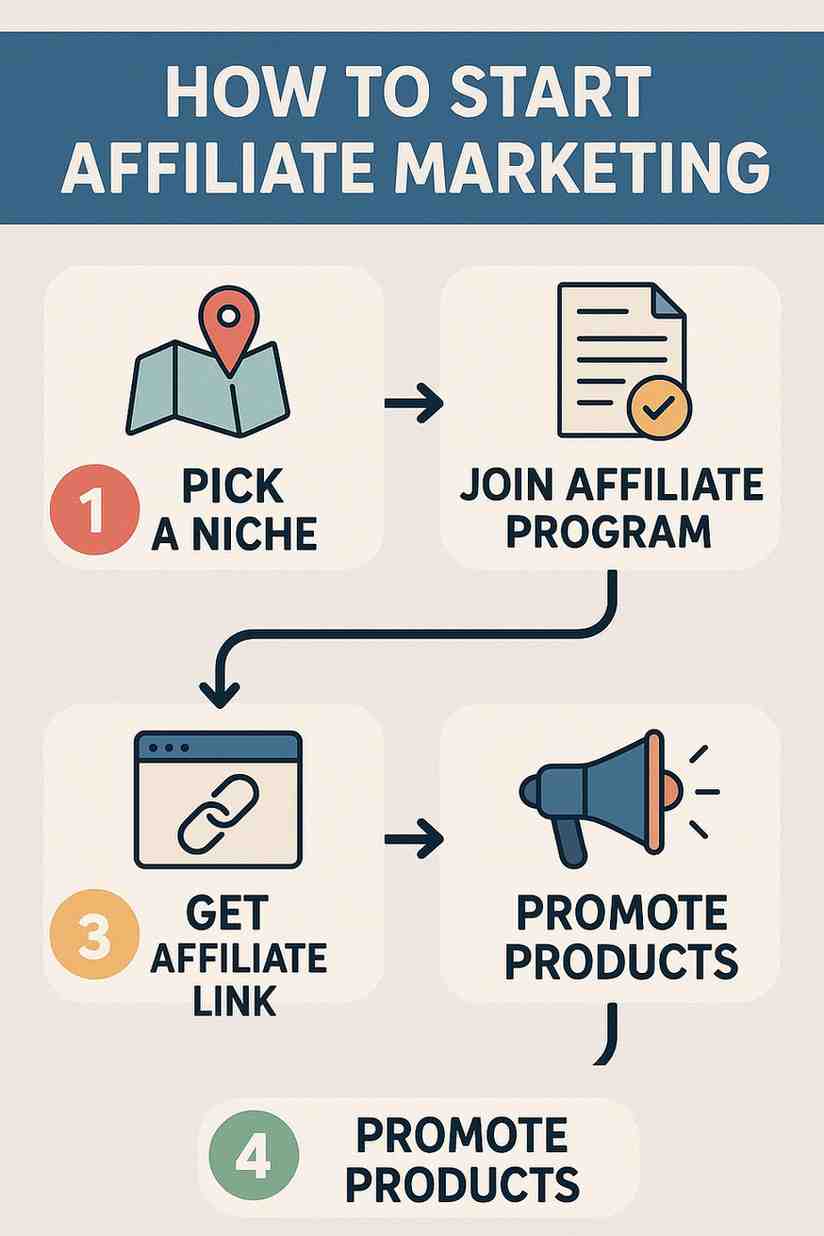
How can a beginner start affiliate marketing step-by-step?

Affiliate marketing is a performance-based marketing strategy where individuals earn commissions by promoting products or services through unique referral links or codes. It’s an accessible entry point for beginners seeking to generate income online, requiring minimal upfront investment compared to other business models. In 2025, affiliate marketing is a thriving industry, generating over $8 billion annually in the U.S. alone (Statista, 2024), driven by the growth of e-commerce, social media, and digital content creation. For beginners, success hinges on understanding the process, selecting the right niche, building an audience, and leveraging effective tools and strategies. This essay provides a detailed step-by-step guide for beginners to start affiliate marketing, addressing key considerations, challenges, and best practices, and includes a real-world example to illustrate the approach.

Step-by-Step Guide for Beginners

Step 1: Understand Affiliate Marketing Basics

Before diving in, beginners must grasp the fundamentals of affiliate marketing to set realistic expectations:

  • Mechanism: Affiliates promote products or services via unique tracking links provided by merchants or affiliate networks. When a user clicks the link and makes a purchase, the affiliate earns a commission (e.g., 5–50% of the sale). Common models include pay-per-sale, pay-per-click, or pay-per-lead.

  • Key Players: Merchants (product owners), affiliates (promoters), affiliate networks (e.g., Amazon Associates, ClickBank), and consumers.

  • Requirements: A platform (e.g., blog, YouTube, social media), internet access, and basic digital marketing skills.

  • Action: Research affiliate marketing through free resources like blogs (e.g., Neil Patel), YouTube tutorials, or X posts from industry experts. Understand terms like cookies (tracking periods, typically 30–90 days), commissions, and conversion rates.

  • Challenges: Beginners may overestimate earnings or underestimate effort. Initial income is often low, averaging $100–$500 monthly after 6–12 months (Affiliate Summit, 2024).

  • Example: Reading “Affiliate Marketing for Beginners” on HubSpot clarifies concepts like tracking and payouts.

Step 2: Choose a Profitable Niche

Selecting a niche—a specific market segment—is critical for targeting the right audience and standing out:

  • Mechanism: Choose a niche based on personal interest, market demand, and profitability. Popular niches include health (e.g., fitness gear), wealth (e.g., investing apps), and lifestyle (e.g., travel accessories). Use tools like Google Trends, Amazon Best Sellers, or X searches to identify trending topics.

  • Criteria: High demand (e.g., fitness trackers), low-to-moderate competition (avoid oversaturated niches like weight loss), and affiliate programs with 10–50% commissions. In India, niches like EdTech or fintech (e.g., UPI apps) are lucrative due to digital adoption (Deloitte, 2025).

  • Action: Brainstorm 3–5 interests (e.g., yoga, personal finance, gaming). Validate demand using Google Keyword Planner for search volume (e.g., “yoga mats” with 10K+ monthly searches). Check affiliate programs on networks like ShareASale or Impact.

  • Challenges: Narrow niches limit audience size, while broad niches face competition. Balancing passion and profitability is key.

  • Example: A beginner passionate about fitness chooses “home workout equipment” after finding high search volume and programs like Fitbit’s 10% commission.

Step 3: Research and Join Affiliate Programs

Affiliate programs provide the products and links to promote, so selecting reputable ones is essential:

  • Mechanism: Join programs through direct merchant websites (e.g., Amazon Associates) or affiliate networks (e.g., ClickBank, CJ Affiliate). Look for high commissions, long cookie durations, and trusted brands. Recurring commission programs (e.g., SaaS like NordVPN) offer sustained earnings.

  • Action: Search for programs in your niche using terms like “home workout affiliate programs.” Evaluate programs based on commission rates (e.g., 20%+), product quality, and support (e.g., banners, tracking tools). Apply to 5–10 programs, providing your platform details (even if basic).

  • Popular Programs: Amazon Associates (1–10% commissions), Bluehost ($65–$200 per signup), NordVPN (40–60% per sale). In India, Flipkart and Groww offer ₹100–₹500 per action (X posts, 2025).

  • Challenges: Some programs require established platforms for approval. Beginners may start with beginner-friendly networks like Amazon or ClickBank.

  • Example: The beginner joins Amazon Associates for fitness gear and NordicTrack’s program for home gym equipment, offering 8% commissions.

Step 4: Build a Platform to Promote Products

A platform—such as a blog, YouTube channel, or social media account—is the foundation for sharing affiliate links:

  • Mechanism: Choose a platform based on your skills and audience preferences. Blogs are ideal for SEO-driven content, YouTube for tutorials, and Instagram/TikTok for visual niches. In India, YouTube and Instagram dominate, with 500 million and 350 million users, respectively (Statista, 2025).

  • Action:

    • Blog: Purchase a domain ($10–$15/year via GoDaddy) and hosting ($5–$10/month via Bluehost). Install WordPress and a free theme. Write 5–10 articles (e.g., “Best Home Workout Gear for Beginners”) with affiliate links.

    • YouTube: Create a channel, invest in a $50 microphone, and produce 5 videos (e.g., “Top 5 Yoga Mats for 2025”). Include links in descriptions.

    • Social Media: Set up an Instagram account, post daily fitness tips, and use link-in-bio tools like Linktree for affiliate links.

  • Tools: Use Canva for visuals, Grammarly for writing, and TubeBuddy for YouTube SEO.

  • Challenges: Building a platform takes time (3–6 months for traction). Content creation requires consistency and quality.

  • Example: The beginner starts a blog, “FitHomeVibes,” with articles reviewing yoga mats and workout gear, embedding Amazon and NordicTrack links.

Step 5: Create High-Quality, Value-Driven Content

Content is the vehicle for promoting affiliate products, driving traffic, and building trust:

  • Mechanism: Produce content that educates, entertains, or solves problems, subtly integrating affiliate links. Formats include reviews (e.g., “NordicTrack Treadmill Review”), tutorials (“How to Start Yoga at Home”), or listicles (“Top 10 Fitness Gadgets”). Disclose affiliate links to comply with FTC guidelines and India’s DPDPA (fines up to ₹250 crore for non-compliance, 2025).

  • Action: Publish 2–3 pieces weekly, optimizing for SEO with tools like Yoast (blogs) or hashtags (social media). Use storytelling to engage (e.g., “How a Yoga Mat Changed My Routine”). Place links naturally in content, CTAs, and resource pages.

  • Best Practices: Focus on audience pain points (e.g., affordable gear), use visuals, and provide honest reviews to build credibility.

  • Challenges: Low-quality content fails to rank or convert. SEO and audience engagement take months to master.

  • Example: The beginner writes “5 Best Yoga Mats Under $50,” reviewing Amazon products, and posts a YouTube tutorial linking to NordicTrack.

Step 6: Drive Targeted Traffic

Traffic is essential for clicks and conversions, requiring strategic promotion:

  • Mechanism: Use organic and paid channels to attract your niche audience:

    • SEO: Optimize blog posts for keywords (e.g., “best yoga mats 2025”) using Google Keyword Planner. Aim for 1,000–2,000 monthly visits in 6 months.

    • Social Media: Share content on Instagram, TikTok, or X, using niche hashtags (e.g., #HomeWorkout). Engage with followers via comments and stories.

    • Email Marketing: Build a list using free tools like Mailchimp, offering lead magnets (e.g., “Free Yoga Guide”). Send weekly newsletters with affiliate links.

    • Paid Ads (Optional): Start with $5–$10/day on Google Ads or Instagram for targeted niches, scaling after ROI.

  • Action: Spend 1–2 hours daily promoting content. Join niche communities (e.g., Reddit’s r/Fitness) to share value-driven posts, avoiding spam.

  • Challenges: Organic traffic grows slowly, and paid ads require budget and expertise. Algorithm changes on platforms like Instagram disrupt reach.

  • Example: The beginner optimizes blog posts for SEO, shares Instagram Reels with #YogaLife, and joins fitness X groups to promote content.

Step 7: Track Performance and Optimize

Monitoring performance ensures long-term success by identifying what works:

  • Mechanism: Use affiliate dashboards (e.g., Amazon Associates) and analytics tools (e.g., Google Analytics, YouTube Studio) to track clicks, conversions, and earnings. Test variables like link placement, content types, or traffic sources to improve ROI.

  • Action: Review metrics weekly, focusing on conversion rates (1–5% is average, Impact, 2024) and top-performing products. Double down on high earners (e.g., NordicTrack over low-margin mats). Experiment with A/B testing for CTAs (e.g., “Buy Now” vs. “Check Price”).

  • Tools: Bitly for link tracking, Hotjar for user behavior, and Google Search Console for SEO insights.

  • Challenges: Low initial traffic limits data. Optimization requires patience and experimentation.

  • Example: The beginner notices NordicTrack links convert at 3% vs. 1% for Amazon mats, shifting focus to treadmill reviews.

Step 8: Scale and Diversify

Once initial success is achieved, scale efforts to increase earnings:

  • Mechanism: Expand content (e.g., 50 blog posts, 20 videos), diversify platforms (add TikTok or Pinterest), and join more programs (e.g., Fitbit, Peloton). Explore higher-ticket products or recurring commissions (e.g., fitness apps). Outsource content creation if budget allows.

  • Action: Set a goal (e.g., $1,000/month in 12 months). Invest earnings in tools (e.g., SEMrush, $120/year) or ads. Build authority by guest posting on fitness blogs or collaborating with influencers.

  • Challenges: Scaling too fast risks quality decline. Diversifying requires learning new platforms.

  • Example: The beginner adds Peloton’s affiliate program, creates TikTok workout videos, and earns $500/month after 9 months.

Challenges for Beginners

  • Time Investment: Building an audience takes 6–12 months, with 20–30 hours weekly.

  • Competition: Niche saturation requires unique content and SEO mastery.

  • Regulatory Compliance: FTC and DPDPA mandate transparent disclosures.

  • Platform Dependence: Algorithm or policy changes (e.g., Amazon’s 2020 commission cuts) impact earnings.

  • Learning Curve: SEO, content creation, and analytics demand ongoing education.

Case Study: Blogging with Amazon Associates

A beginner named Priya, based in India, started affiliate marketing in 2024, leveraging Amazon Associates, with success relevant to 2025.

Background

Priya, a fitness enthusiast, launched a blog, “FitIndiaVibes,” targeting home workouts, inspired by India’s wellness surge (60% prioritize health, Deloitte, 2025).

Steps Taken

  1. Learning: Priya studied affiliate marketing via YouTube (e.g., Ankur Aggarwal’s channel) and X posts from Indian affiliates.

  2. Niche Selection: She chose “home workout equipment” after validating demand (10K+ searches for “yoga mats” via Google Trends) and finding Amazon India’s 5–10% commissions.

  3. Affiliate Programs: Priya joined Amazon Associates and Decathlon’s program (8% commissions), approved due to her blog’s initial content.

  4. Platform: She bought a domain ($12/year, Namecheap) and hosting ($7/month, Hostinger), creating a WordPress blog with 10 posts (e.g., “Best Treadmills Under ₹20,000”).

  5. Content: Priya wrote SEO-optimized reviews and posted Instagram Reels with #FitnessIndia, disclosing affiliate links per DPDPA.

  6. Traffic: She optimized posts for keywords, shared content on X fitness groups, and built a 500-subscriber email list with a free “Workout Planner.”

  7. Tracking: Using Amazon’s dashboard and Google Analytics, Priya tracked 2% conversion rates, focusing on high-margin Decathlon products.

  8. Scaling: After 6 months, she added YouTube tutorials, joined Flipkart’s program, and earned ₹15,000/month by month 9.

Impact and Lessons

  • Earnings: Priya earned ₹1,80,000 annually, reinvesting in ads and tools.

  • Audience: Her blog reached 5,000 monthly visitors, with 10K Instagram followers.

  • Lessons: Niche focus, SEO, and consistent content drove success. Compliance with DPDPA built trust.

  • Relevance: Priya’s approach aligns with India’s affiliate growth, projected at 25% CAGR by 2027 (X posts, 2025).

Conclusion

Beginners can start affiliate marketing by understanding basics, choosing a profitable niche, joining programs, building a platform, creating value-driven content, driving traffic, tracking performance, and scaling efforts. This process, while time-intensive, leverages low-cost tools and digital platforms to generate income. Priya’s success with “FitIndiaVibes” demonstrates the power of niche focus, SEO, and compliance in India’s growing market. In 2025, beginners must navigate competition, regulations, and platform changes to succeed, but with persistence and strategic execution, affiliate marketing offers a viable path to financial independence in the digital economy.

How to exclude placements?

How to Exclude Placements in Google Ads

Excluding placements in Google Ads allows you to prevent your ads from appearing on specific websites, apps, YouTube channels, or videos that are not performing well or are irrelevant to your business. This helps you improve ad performance, reduce wasted spend, and maintain brand safety. You can exclude placements in the Display Network, YouTube campaigns, and Performance Max campaigns (with some limitations).

Steps to Exclude Placements in Display or Video Campaigns

  1. Sign in to your Google Ads account.

  2. Click on “Campaigns” or “Ad groups” — choose the campaign or ad group where you want to exclude placements.

  3. In the left-hand menu, click on “Content.”

  4. Click on “Placements,” then click on the “Exclusions” tab.

  5. Click the blue pencil icon (+) to add exclusions.

  6. Choose what type of placements to exclude: websites (URLs), YouTube channels, YouTube videos, mobile apps, or app categories.

  7. Enter or paste the URLs or placements you want to exclude.

  8. Select whether to apply these exclusions at the campaign level or ad group level.

  9. Click “Save.”

Example: You run ads for luxury watches and see that your ads are showing on irrelevant sites like gaming blogs and children’s YouTube channels. You decide to exclude:

  • www.kidsgames123.com

  • youtube.com/channel/UCabc123XYZ (kids-focused channel)

  • The entire “Games” app category

You follow the steps above and enter these under exclusions to prevent future wasted spend.

How to Exclude Placements Using the Placement Report

  1. Go to “Placements” in your campaign, then click on “Where Ads Showed.”

  2. Review the list of placements where your ads appeared.

  3. Filter or sort by performance to find placements with low CTR, poor engagement, or no conversions.

  4. Select the underperforming placements.

  5. Click “Edit,” then choose “Exclude from Campaign” or “Exclude from Ad Group.”

This method allows you to exclude poor-performing placements based on real-time data.

Exclude App Categories Completely (Optional)

If you notice that most of your Display campaign spend is going to mobile apps without results, you can block apps altogether.

  1. In the “Placements” section, click on “Exclusions.”

  2. Select “App categories.”

  3. Choose either specific app categories like Games, Social, or Entertainment — or select all categories.

  4. Click “Save.”

Excluding Placements in Performance Max Campaigns

Manual placement exclusions are not fully available in Performance Max campaigns. However, you can still take some actions to control where your ads appear:

  • Use account-level placement exclusion lists for YouTube channels and websites (submit through a Google Ads representative).

  • Apply brand safety settings to avoid sensitive or controversial content.

  • Use negative keywords to prevent irrelevant searches that could trigger your ads.

Best Practices for Placement Exclusion

Review your placement report regularly — at least once a week for active Display or Video campaigns. Block placements that are irrelevant, controversial, or produce high spend without conversions. Exclude all mobile app categories if your product isn’t suitable for app-based traffic. Create an account-level placement exclusion list to avoid repeating the same exclusions across multiple campaigns. Test new placements and ad formats, but be ready to pause or exclude underperformers quickly.

Conclusion

Excluding placements in Google Ads is essential for optimizing your ad spend and improving your campaign’s return on investment. By removing irrelevant or underperforming websites, apps, and YouTube content, you ensure your ads appear in the right places — to the right audience — at the right time.

What are in-market audiences?

In-Market Audiences in Google Ads are predefined audience segments made by Google that include users who are actively researching, comparing, or intending to purchase specific products or services. These users are considered to be “in the market” for something — which means they’re close to making a buying decision.

Google uses real-time data from users’ search history, browsing behavior, site visits, video views on YouTube, and clicks to determine their purchase intent. Advertisers can then target these audiences across the Google Display Network, YouTube, Gmail, Discovery, and even Search campaigns.

How In-Market Audiences Work

When users display clear intent signals (such as searching for “best DSLR cameras under ₹50,000” or watching multiple YouTube reviews of a Nikon camera), Google places them into relevant in-market audience categories like “Cameras & Photography.”
Advertisers can choose to target those audiences in their campaigns. Google will then show their ads to users in that segment — who are actively shopping for those products or services.

Key Characteristics of In-Market Audiences

  • Based on recent online behavior, not just long-term interests

  • Ideal for lower-funnel targeting (people ready to buy)

  • Updated in real-time to keep up with changing user intent

  • Covers hundreds of predefined categories, from electronics to travel to education

Benefits of In-Market Audiences

  1. High Purchase Intent
    These users are not just curious — they’re in the research or decision-making phase and more likely to convert.

  2. Time-Saving Targeting
    Instead of building custom lists, you can select from Google’s ready-made audience groups.

  3. Effective for Remarketing Expansion
    Reach new users who haven’t visited your website but are actively looking for what you offer.

  4. Multi-Channel Compatibility
    In-market audiences work with Display, Search, YouTube, Gmail, and Discovery campaigns.

  5. Cost-Effective
    Since you’re targeting users close to conversion, campaigns often deliver better ROI and lower cost-per-acquisition.

Where You Can Use In-Market Audiences

  • Google Display Network: Show banner or responsive display ads to users browsing related content.

  • YouTube: Serve video ads to users watching product reviews or tutorials in related categories.

  • Search Campaigns: Layer in-market audiences to adjust bids or tailor messaging.

  • Discovery & Gmail Ads: Reach shoppers while they browse their Gmail inbox or Google Discover feed.

Examples of In-Market Audience Categories

Here are some examples of available categories you can target:

  • Apparel & Accessories

  • Beauty Products & Services

  • Business Services

  • Education

  • Financial Services

  • Home & Garden

  • Real Estate

  • Sports & Fitness

  • Travel (flights, hotels, tour packages)

  • Vehicles (cars, bikes, insurance)

Each category has subcategories. For example, under “Travel”, you may find:

  • Trips to Europe

  • Hotels in India

  • Tour Packages

  • Honeymoon Travel

Detailed Example: Trekovate (Travel Bag Brand)

Business: Trekovate sells durable, stylish travel bags online

Objective: Reach users who are actively planning travel and looking for travel accessories

In-Market Audience Chosen:

  • “Travel Accessories”

  • “Luggage & Bags”

  • “Domestic Travel”

  • “Travel to Hill Stations in India”

Ad Format: Discovery ad campaign featuring lifestyle images of young travelers using Trekovate bags

Ad Copy:
Headline: “Adventure-Ready Travel Bags for Every Journey”
Description: “Explore the latest collection of water-resistant, lightweight travel gear. Perfect for mountains, beaches, and cities.”

Target Platforms: Google Discover, YouTube, Gmail

Result After 3 Weeks:

  • Impressions: 4.7 lakh

  • Clicks: 22,000

  • Conversion Rate: 3.2%

  • ROAS: 5.4x

  • Cost per Acquisition: ₹93

Why It Worked:

  • Targeted users were actively searching for travel products

  • Campaign visuals aligned with audience interest (travel photos)

  • Reached customers at the right stage — when they were about to shop

Best Practices for Using In-Market Audiences

  1. Choose Relevant Categories
    Don’t select too many categories. Stick to 2–5 tightly relevant options that match your product.

  2. Combine with Remarketing
    Layer in-market audiences with remarketing lists for better performance.

  3. Use for Seasonal Campaigns
    Great for Diwali sales, New Year deals, Black Friday, holiday travel, or back-to-school campaigns.

  4. Tailor Your Messaging
    Your ads should speak directly to users who are actively shopping — use urgency, discounts, or benefits.

  5. Monitor Performance
    Track conversions, bounce rates, and CTR to see which audience segments work best.

  6. Use Bid Adjustments (Search Campaigns)
    Increase bids for in-market audiences in search campaigns to prioritize users with higher intent.

Conclusion

In-Market Audiences in Google Ads help advertisers focus their budget on users who are showing clear buying signals. Instead of casting a wide net, you reach people who are closer to making a decision — increasing the chances of clicks, conversions, and sales. Whether you’re in travel, fashion, tech, education, or e-commerce, In-Market Audiences let you connect with shoppers who are already looking for what you offer.

How to Become a Digital Marketing Specialist

Digital marketing is one of the fastest-growing fields today. Many people are interested in building a career in digital marketing, and becoming a digital...

What is SMM in Digital Marketing

SMM, or Social Media Marketing, is one of the most important parts of digital marketing. In simple words, SMM is the process of using...

What is Google Analytics in Digital Marketing

Google Analytics is one of the most important tools in digital marketing. It helps businesses understand how people interact with their websites and online...

What is Google AdWords in Digital Marketing

Google AdWords is one of the most important tools in digital marketing. Many businesses use AdWords to reach their target audience online and increase...

What Is CPM in Digital Marketing

In digital marketing, understanding how your ads are priced and measured is very important. Different advertising models help marketers track performance and control spending....