Home Blog Page 14

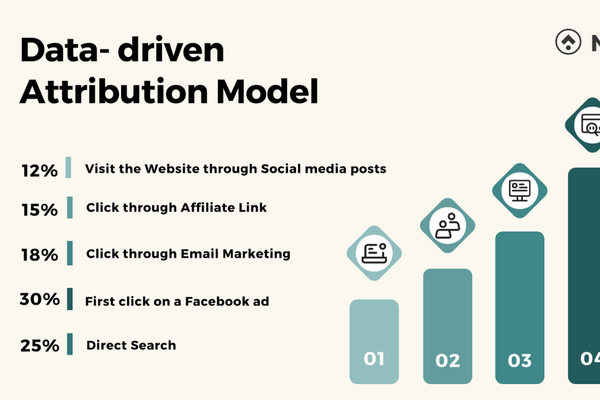
What is data-driven attribution?

Introduction

In the world of digital marketing, understanding how customers convert is critical. Businesses spend on different ad campaigns across platforms like Search, Display, Shopping, YouTube, and others. But the big question is — which of these campaigns really drive results? To answer this, Google Ads offers various attribution models, and among them, Data-Driven Attribution (DDA) stands out as the most accurate and intelligent. Unlike traditional models that assign credit based on fixed rules (like giving all credit to the last ad a user clicked), data-driven attribution uses machine learning to evaluate the actual influence of every touchpoint in the customer journey. This leads to better optimization, smarter bidding, and more profitable advertising decisions.

Understanding Data-Driven Attribution

Data-driven attribution is an automated model that distributes conversion credit among various interactions in a user’s conversion path, based on their actual impact. Instead of following a set rule like last-click or first-click attribution, it studies patterns from your account’s historical data to understand which ads, clicks, and impressions helped drive the conversion. Google’s machine learning system compares the paths of users who converted with those who didn’t and determines which touchpoints had more influence in achieving the final goal.

This model can analyze interactions across different campaigns, ad groups, keywords, devices, channels, and even creatives. It doesn’t just reward the ad that closed the sale, but also those that introduced or nurtured the customer along the way. This makes DDA especially valuable for businesses running full-funnel marketing strategies — including brand awareness, consideration, and purchase-focused ads.

Example: Myntra’s Multi-Touch Campaign

Let’s take the example of a major fashion retailer like Myntra. Imagine a user sees a YouTube video ad promoting Myntra’s Summer Collection. A few days later, they search for “Myntra women’s dresses” and click on a Search ad. Then they come across a remarketing Display ad that highlights a 30% discount on the exact dress they were looking at. They click and finally make a purchase.

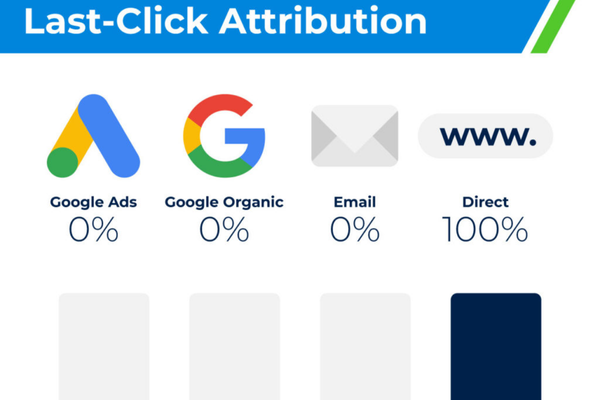
In a traditional last-click attribution model, the Display ad would get 100% of the credit for the sale. This would ignore the value of the YouTube ad that created awareness and the Search ad that helped the user find the product category.

With Data-Driven Attribution, Google’s system analyzes all the steps and finds that:
– The YouTube ad introduced the user to the brand and played a critical role in starting the journey.
– The Search ad helped the user explore relevant products and built purchase intent.
– The Display ad was the final nudge that closed the sale.

So the conversion credit might be distributed like this:
– YouTube ad: 40%
– Search ad: 35%
– Display ad: 25%

This helps Myntra see that even though the Display ad sealed the deal, the YouTube and Search ads were essential. As a result, Myntra can confidently invest more in video and search campaigns, knowing they play a significant role in conversions.

Why Use Data-Driven Attribution

There are many reasons why businesses are shifting toward data-driven attribution. First, it gives a much clearer picture of what is actually influencing conversions. Instead of making decisions based on assumptions or simple rules, you’re using real user behavior to guide your marketing strategy. This leads to more efficient ad spending and smarter decisions.

Second, DDA works across channels and devices. A user might first click an ad on mobile, do more research on a laptop, and convert on a tablet. DDA tracks these multi-device journeys and gives credit where it’s due. It removes the bias of over-rewarding the last interaction, which can mislead advertisers into underfunding upper-funnel campaigns.

Third, DDA is integrated with Google’s Smart Bidding strategies. This means that once you enable data-driven attribution, your automated bidding will use better signals to optimize bids in real time. This can lead to more conversions at lower costs and an improved return on ad spend (ROAS).

Eligibility and Availability

In the past, data-driven attribution was only available to large accounts with high conversion volumes. But now, Google has made DDA the default attribution model for most new conversion actions, regardless of account size. So whether you’re a small brand or a large ecommerce player like Myntra, you can use this model without worrying about minimum thresholds.

How to Set Up Data-Driven Attribution

  1. Go to your Google Ads account.

  2. Click on Tools & Settings, then go to Measurement > Conversions.

  3. Choose the conversion action (like Purchases, Sign-ups, or Leads).

  4. Click Edit Settings.

  5. Under Attribution Model, select Data-Driven Attribution.

  6. Click Save.

From this point on, your conversion reporting, bidding, and optimization will use this smarter model.

Example: Skechers’ Cross-Channel Strategy

Let’s say Skechers runs campaigns for their walking shoes. A potential customer sees a Display ad on a fitness blog, clicks on a Search ad for “lightweight Skechers walking shoes,” and finally clicks a Shopping ad that takes them directly to the product page, where they make a purchase.

Under last-click attribution, only the Shopping ad would receive credit, making it seem like it was solely responsible for the sale. However, DDA evaluates all interactions and may assign credit like this:
– Display ad: 20%
– Search ad: 50%
– Shopping ad: 30%

With this data, Skechers realizes that the Display ad is driving meaningful traffic at the top of the funnel and should not be discontinued. The Search ad is doing the heavy lifting in driving interest, and the Shopping ad helps finalize the conversion.

How to Use DDA for Better Optimization

After you enable data-driven attribution, your reports will begin to reflect more accurate contribution data. You’ll see some campaigns perform better than before, while others may seem less effective — not because performance changed, but because attribution has become more realistic.

Here’s how to take advantage of this data:
– Allocate more budget to campaigns that are undervalued in last-click models but contribute heavily under DDA.
– Use Smart Bidding strategies like Target CPA or Target ROAS, which now use DDA signals to adjust bids more accurately.
– Improve creative messaging for campaigns that influence early in the journey.
– Analyze conversion paths in the Attribution Reports in Google Ads to understand how users are interacting with your ads.
– Avoid over-optimizing for only last-touch campaigns, and support top- and mid-funnel efforts.

Conclusion

Data-driven attribution in Google Ads is a major step forward in understanding what truly drives conversions. Instead of relying on outdated rules like giving full credit to the last click, DDA uses advanced machine learning to assign value based on real user behavior. It helps brands like Myntra and Skechers make smarter decisions by showing the full impact of all their campaigns—Search, Display, YouTube, and Shopping alike. By using this model, advertisers get more accurate performance insights, better bidding efficiency, and improved ROI across all channels. It’s a must-use tool for any modern digital marketing strategy.
What is last-click attribution?

Last-click attribution is an attribution model in Google Ads that assigns 100% of the conversion credit to the last ad and keyword a user clicked on before completing a conversion (such as making a purchase, signing up, or filling out a form). It completely ignores any previous interactions the user may have had with other ads in your account during their journey.

This model is simple, easy to understand, and was the default attribution method in Google Ads for many years. However, it is often criticized for undervaluing upper-funnel touchpoints like display ads, YouTube campaigns, or earlier search interactions that may have influenced the customer before the final click.

How It Works

If a user clicks on multiple Google Ads before converting, only the final clicked ad receives full credit. No matter how many steps or clicks happened before, they are not considered in the performance evaluation.

Example: Myntra

Let’s say a customer is shopping for ethnic wear on Myntra. Here’s their journey:

  1. They see a YouTube ad for “Myntra Festive Collection” – no click.

  2. Later, they search “Myntra Sarees” and click on a Search ad.

  3. The next day, they click on a Display ad showing a 30% discount.

  4. Finally, they search for “Buy Myntra Saree online” and click on a Search ad again and make a purchase.

If Myntra is using last-click attribution, only the final Search ad (step 4) will get 100% of the credit for that conversion. The other ad interactions in steps 1, 2, and 3 will be ignored, even though they may have played an important role in influencing the purchase.

Benefits of Last-Click Attribution

  • Simplicity: It’s easy to understand and analyze.

  • Direct Action Tracking: Useful for identifying which click actually led to the sale.

  • Quick Decision Making: Helps advertisers make fast optimizations based on immediate performance data.

Drawbacks of Last-Click Attribution

  • Ignores Early Touchpoints: Doesn’t credit awareness campaigns like YouTube, Display, or upper-funnel Search.

  • Undervalues Supporting Keywords: Keywords that help initiate or nurture the buying journey get no recognition.

  • Skewed Optimization: May lead advertisers to over-invest in bottom-funnel campaigns and under-invest in branding or awareness.

Example: Skechers

A customer looking for sports shoes might follow this path:

  1. Clicks on a Display ad for Skechers sports shoes

  2. Watches a YouTube video ad about lightweight sneakers

  3. Clicks on a Search ad for “best walking shoes Skechers”

  4. Finally, clicks on a Search ad for “Buy Skechers GoWalk online” and converts

Under last-click attribution, Skechers would only credit the final “Buy Skechers GoWalk online” ad. The Display ad, YouTube video, and previous Search ad that helped the customer decide on the product would receive no credit, making it seem like they had no impact.

When to Use Last-Click Attribution

  • For simple campaigns with short sales cycles

  • When the focus is only on immediate performance (e.g., flash sales or urgent promos)

  • For advertisers who are still learning attribution basics before moving to more advanced models

  • When upper-funnel data is unreliable or unavailable

When Not to Use Last-Click Attribution

  • For multi-channel or full-funnel marketing strategies

  • When running brand awareness or display campaigns that influence long-term behavior

  • If you want to understand the full path to conversion

  • When making budget allocation decisions across Search, Display, YouTube, and Shopping

Better Alternatives

  • Data-Driven Attribution (DDA): Uses machine learning to distribute credit based on real influence

  • Position-Based Attribution: Credits the first and last clicks most, with some value to middle steps

  • Time Decay: Gives more credit to actions closer to the conversion

  • Linear Attribution: Splits credit equally among all clicks

Conclusion

Last-click attribution gives all credit to the final interaction before a conversion. While it’s easy to use and useful for tracking direct-response actions, it often hides the value of early touchpoints like branding or discovery ads. Brands like Myntra and Skechers may use it for analyzing final conversion triggers but would benefit more from using data-driven or multi-touch attribution models to understand the complete customer journey and optimize their ad strategy accordingly.

What is an attribution model?

An attribution model in Google Ads is a rule, or set of rules, that determines how credit for conversions is assigned to different touchpoints in a user’s journey. In simple terms, it tells Google Ads how to distribute the value of a conversion across the various ads, clicks, and impressions that a customer interacted with before completing a purchase or taking a desired action (like signing up or filling out a form).

When someone clicks on multiple ads from your account before converting, the attribution model defines which click (or clicks) get the credit for that conversion. This affects your conversion data, campaign performance metrics, and ultimately the optimization decisions you make in your advertising strategy.

Understanding attribution models is important because different models can give you very different interpretations of performance, which can influence how you bid, allocate your budget, or value keywords and campaigns.

Types of Attribution Models in Google Ads

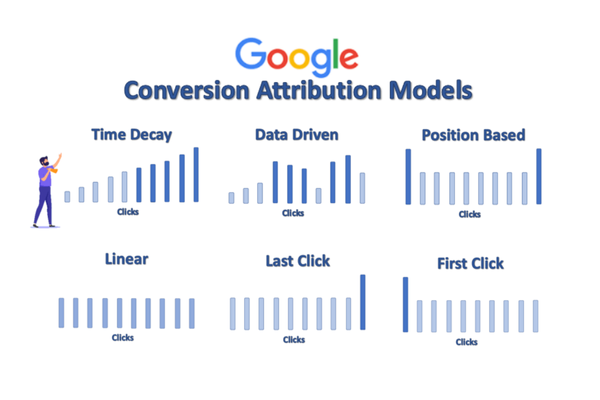
  1. Last Click Attribution
    Gives 100% of the conversion credit to the last ad clicked before the conversion.
    This is simple but ignores earlier interactions that may have helped influence the decision.
    Example: If a Myntra customer clicks on an ad for “women’s dresses,” then later clicks on another ad for “Myntra summer sale” and makes a purchase, the second ad gets full credit.

  2. First Click Attribution
    Gives 100% of the credit to the first ad click that started the conversion path.
    It’s useful when you’re focused on top-of-funnel awareness.
    Example: If a user first clicks on an ad for “Myntra kurtis,” browses, then later clicks on “Myntra ethnic sale” and purchases, the “Myntra kurtis” ad gets all the credit.

  3. Linear Attribution
    Distributes the conversion credit equally across all the ad interactions on the path.
    It’s useful when you believe each touchpoint played an equal role.
    Example: If a user clicked on three different Myntra ads before converting, each ad would get 33.3% of the credit.

  4. Time Decay Attribution
    Gives more credit to ad interactions that happened closer in time to the conversion.
    It assumes recent actions had a stronger influence than earlier ones.
    Example: If a Skechers buyer clicked on ads three days, one day, and 10 minutes before buying, most credit goes to the final touchpoints.

  5. Position-Based (U-Shaped) Attribution
    Gives 40% credit to the first click, 40% to the last click, and distributes the remaining 20% equally among the middle interactions.
    This model assumes both the first and last touchpoints are the most influential.
    Example: If someone clicked on four Myntra ads in total, the first and last would each get 40%, while the two in the middle would get 10% each.

  6. Data-Driven Attribution (DDA)
    This is Google Ads’ default and most advanced model. It uses machine learning to analyze all your conversion paths and assigns credit based on how each interaction actually contributed to the conversion.
    It’s only available if your account has sufficient conversion data.
    Example: If Google finds that users who click on a specific Skechers “Running Shoes” ad are 70% more likely to convert, that ad will receive more credit—even if it wasn’t the last or first touchpoint.

Why Attribution Models Matter

Attribution models directly impact how your campaigns are evaluated. Using the wrong model can lead to underestimating or overestimating the performance of certain campaigns, keywords, or devices.
For example, last click attribution may undervalue upper-funnel campaigns like display or YouTube ads that introduce your brand to users. On the other hand, data-driven attribution shows you which campaigns truly helped conversions along the path.

Example for Myntra

Myntra runs Search, Display, and YouTube campaigns. A user sees a YouTube ad for “Myntra Summer Fashion,” later searches “Myntra dresses,” clicks a Search ad, and finally clicks a retargeting Display ad before buying.

  • If using Last Click, only the Display ad gets the credit.

  • If using Linear, all three ads share equal credit.

  • If using Data-Driven, Google looks at historical patterns and may assign 50% credit to the YouTube ad, 30% to Search, and 20% to Display—if YouTube ads are shown to have strong influence on conversions.

Best Practices

  • Start with Data-Driven Attribution if your account has enough data. It provides the most accurate view of what’s working.

  • If you don’t qualify for DDA, Position-Based or Linear can give a more balanced view than Last Click.

  • Avoid relying only on Last Click—it often undervalues awareness campaigns.

  • Regularly review attribution reports in Google Ads to see how different touchpoints contribute to conversions.

  • Use attribution data to adjust bidding, keywords, ad copy, and budget allocation.

Conclusion

An attribution model helps determine how credit is assigned across your marketing efforts. Choosing the right model is essential for accurately understanding what’s driving results, which campaigns are really contributing to sales, and how to optimize your strategy. For large platforms like Myntra or Skechers, using the right attribution model ensures smarter investment in the channels, campaigns, and creatives that actually impact customer decisions. It moves you away from guesswork and toward informed, data-backed advertising decisions.

What is a portfolio bid strategy?

A portfolio bid strategy is a shared, automated bidding strategy in Google Ads that can be applied to multiple campaigns, ad groups, and keywords simultaneously. Unlike standard bidding strategies that are applied individually within each campaign, a portfolio bid strategy optimizes bids collectively across all selected entities to achieve a unified goal—such as maximizing conversions, maintaining a specific return on ad spend (ROAS), or achieving a target cost per acquisition (CPA). By using shared data and performance signals across campaigns, portfolio strategies help Google Ads make smarter, real-time bidding decisions, which often leads to better overall performance and more efficient budget use.

Types of Portfolio Bid Strategies

Maximize Conversions – Automatically sets bids to help you get the most conversions within your budget.
Target CPA (Cost Per Acquisition) – Sets bids to try and get as many conversions as possible at your specified average CPA.
Target ROAS (Return on Ad Spend) – Bids to maximize conversion value while trying to achieve your target return on ad spend.
Maximize Clicks – Focuses on getting as many clicks as possible within your budget.
Enhanced CPC (Cost Per Click) – Adjusts manual bids automatically to increase the likelihood of conversions while still under manual bidding control.

Why Use a Portfolio Bid Strategy?

Centralized Bidding Logic – Instead of setting up bid strategies for each campaign, you define one shared strategy and apply it across many.
Better Optimization – Google uses more data from across your campaigns, which leads to better-informed and more accurate bidding decisions.
Easier Management – Managing and updating one bid strategy is faster and more consistent than managing several individual strategies.
Smarter Budget Allocation – Portfolio strategies adjust bids where they’re most effective, allowing you to shift spending automatically to top-performing campaigns or ad groups.
Scalability – Ideal for large advertisers, agencies, or businesses running multiple campaigns in the same account.

Example for Myntra

Myntra is running campaigns for different fashion categories including Men’s Casualwear, Women’s Party Dresses, Footwear, and Accessories. Each campaign has a different budget and audience but a common business goal: achieving a Target ROAS of 500%. Instead of creating a separate bidding strategy for each category, Myntra sets up a portfolio bid strategy named “Myntra ROAS 500%” and applies it to all campaigns. Google Ads then optimizes bids across all campaigns collectively. If the Women’s Party Dress campaign is performing exceptionally well and delivering more revenue per rupee spent, Google automatically shifts more bid strength toward that campaign while maintaining the overall ROAS goal across all campaigns. This helps Myntra ensure optimal budget use and maximizes returns.

How to Create a Portfolio Bid Strategy

Log in to your Google Ads account
Go to Tools & Settings > under “Shared Library” click on Bid strategies
Click the plus (+) button to create a new bid strategy
Choose your bidding strategy (e.g., Target CPA, Target ROAS)
Name your strategy (e.g., “Myntra India – Max Conversions”)
Set your target values and other optional settings like device or ad schedule bid adjustments
Save and apply the strategy to your chosen campaigns, ad groups, or keywords

Key Metrics to Monitor

Once a portfolio strategy is in use, monitor its performance by:
Viewing metrics like conversions, CPA, ROAS, and conversion value under Bid Strategies
Using the “Bid Strategy Report” to see how each campaign within the portfolio contributes to overall results
Adjusting target values based on business goals or market changes

Best Practices

Group campaigns with similar goals and conversion types in one portfolio
Avoid mixing campaigns with very different objectives (like brand awareness and ecommerce sales) in the same strategy
Monitor frequently, especially when first launching the strategy
Give the algorithm enough data (at least 30+ conversions per month per strategy is ideal for Target CPA or Target ROAS)
Adjust targets gradually if results are inconsistent

Conclusion

A portfolio bid strategy is a powerful way to scale and optimize your Google Ads account by using automation and collective performance data. For a large ecommerce platform like Myntra, which runs hundreds of campaigns across various categories, portfolio strategies allow for smarter bid management, better budget utilization, and improved return on investment. By grouping campaigns under a single strategy, Myntra gains centralized control, better optimization across campaigns, and simplified account maintenance—all while achieving more predictable and profitable results.

How to use shared audiences?

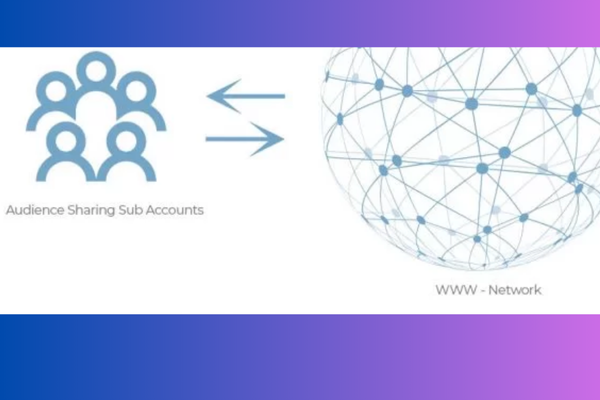
Shared audiences allow advertisers to reuse and apply remarketing lists and audience segments across multiple Google Ads campaigns or even across multiple accounts (if they’re linked through a manager account). This helps ensure consistent targeting, improve efficiency, and scale audience-based marketing strategies without needing to recreate audiences for each campaign or account.

Shared audiences typically include:

  • Remarketing lists (e.g., past website visitors, cart abandoners)

  • Customer match lists (email/phone uploads)

  • App users

  • Custom audiences

  • YouTube viewers

  • Similar audiences (when applicable)


Step-by-Step Guide to Use Shared Audiences

1. Create Your Audience List (Remarketing List or Custom Segment)

Before sharing, you need to create the audience in Google Ads or Google Analytics (if using GA4).

In Google Ads:

  1. Go to Tools & Settings > Shared Library > Audience Manager

  2. Click Segments → Choose the list type:

    • Website visitors

    • App users

    • Customer list (CSV upload)

    • YouTube users

    • Custom segments (based on interests, keywords, URLs)

  3. Set the audience membership duration and define the rules (e.g., people who visited /checkout but not /thank-you).

  4. Save the audience list.


2. Share Audiences Across Campaigns or Accounts

Option A: Within the Same Account

Once you’ve created an audience in Audience Manager, you can apply it to any campaign or ad group in the same account.

To apply to a campaign:

  1. Go to the desired campaign or ad group

  2. Click Audiences

  3. Click the pencil icon to edit

  4. Choose from your remarketing lists, custom segments, or other shared audiences

  5. Apply the audience to Observation or Targeting mode


Option B: Share Across Multiple Google Ads Accounts (via Manager Account / MCC)

If you manage multiple Google Ads accounts (e.g., ZARA India, ZARA UAE, ZARA Singapore), you can share audience lists between them using a Manager account.

To set up audience sharing:

  1. Sign in to your Manager Account (MCC)

  2. Go to Tools & Settings > Setup > Access and security

  3. Go to the Manager account settings

  4. Under “Audience manager account,” select the account where the audiences are stored

  5. Link client accounts that need to use the audience lists

  6. Once linked, shared audiences will appear in the Audience Manager of the receiving accounts

This lets you use the same audience (e.g., “Cart Abandoners – ZARA India”) across different country accounts without recreating them.


3. Apply Shared Audiences to Campaigns

To use a shared audience:

  1. Open the target campaign or ad group

  2. Click on Audiences from the left-side menu

  3. Click Edit Audience Segments

  4. Choose from Remarketing and similar audiences, Customer lists, Custom segments, etc.

  5. Add the desired shared audience

  6. Choose Targeting (narrow reach to audience only) or Observation (collect data and adjust bids based on audience performance)

  7. Save changes


4. Monitor and Optimize

After applying shared audiences:

  • Monitor performance in the Audiences tab

  • Use bid adjustments to prioritize high-performing audiences

  • Segment campaign data by audience to see which lists drive more conversions

  • Adjust audience durations, targeting rules, or exclusions based on performance


Examples

ZARA Example

ZARA creates a remarketing audience called “Viewed Women’s Winter Jackets” in their India account. They share this audience with the UAE and UK Google Ads accounts via their MCC. Now, all regional campaigns for winter apparel can target users who previously viewed jackets on Zara.com.

They apply the audience to:

  • A Display Campaign with Targeting mode (show ads only to the list)

  • A Search Campaign in Observation mode (monitor audience impact and adjust bids)

  • A YouTube campaign that plays video ads for users who viewed jackets but didn’t purchase


Skechers Example

Skechers collects a customer list of people who bought running shoes in the last 6 months and uploads it as a Customer Match audience. They then share this list across all global campaign accounts through their MCC setup.

They use this list to:

  • Upsell new collections of running shoes

  • Create similar audiences to find new users with similar online behavior

  • Exclude past buyers from first-time buyer promotions to avoid wasting budget


Best Practices for Using Shared Audiences

  • Always label shared audiences clearly (e.g., “Abandon_Cart_India_30d”) for easy identification

  • Use audience exclusions to avoid retargeting users who already converted

  • Set audience membership durations carefully based on buying cycles

  • Combine shared audiences with ad customizers or IF functions for personalized messaging

  • Use Custom Segments to define new interest-based shared audiences (e.g., “Users interested in sustainable fashion”)


Conclusion

Shared audiences in Google Ads are a vital tool for advertisers managing multiple campaigns or accounts. They let you build consistent, scalable targeting strategies that reach the right users with the right message across regions, languages, and channels. For global brands like ZARA and Skechers, shared audiences help streamline remarketing, cross-market promotion, and efficient segmentation—leading to better ROI, reduced manual work, and smarter ad personalization.

What are shared libraries?

Shared Libraries in Google Ads are centralized resources that allow advertisers to create, manage, and apply common assets or settings across multiple campaigns and ad groups, saving time and ensuring consistency. Instead of setting up the same item repeatedly for different campaigns, Shared Libraries enable you to define them once and reuse them wherever needed.

They help streamline campaign management, especially when dealing with large or complex accounts. Shared Libraries can include items like bid strategies, audiences, budgets, placement exclusions, and more. By using Shared Libraries, advertisers can apply updates globally across campaigns, reduce human error, and improve overall efficiency.

Main Components of Shared Libraries

  1. Shared Budgets
    A shared budget lets you allocate a single daily budget across multiple campaigns. Google will automatically distribute the budget to the campaigns that need it most throughout the day.
    Example: If ZARA runs separate campaigns for Men’s, Women’s, and Kids’ clothing, instead of assigning ₹5,000 daily to each campaign, they can use a shared budget of ₹15,000 for all three. Google then manages how the money is spent based on performance.

  2. Portfolio Bid Strategies
    A portfolio bid strategy is an automated bidding strategy that can be applied to multiple campaigns, ad groups, and keywords. Google optimizes bids across the portfolio to achieve a common performance goal like Target CPA or Maximize Conversions.
    Example: Skechers runs campaigns for Running Shoes, Walking Shoes, and Lifestyle Shoes. They can apply one portfolio strategy like Target ROAS across all three, so Google manages bidding collectively to get the best return.

  3. Audience Lists (Remarketing Lists)
    You can create and store audience lists—such as website visitors, cart abandoners, or past converters—and use them across multiple campaigns.
    Example: ZARA creates a remarketing list for users who visited the summer collection page but didn’t purchase. This list is stored in the Shared Library and can be used across all Display and YouTube remarketing campaigns.

  4. Negative Keyword Lists
    You can create a list of negative keywords and apply it to multiple campaigns to block irrelevant traffic.
    Example: Skechers doesn’t want their ads to show for keywords like “free shoes,” “cheap quality shoes,” or “second-hand sneakers.” They can create a negative keyword list in Shared Libraries and apply it to all campaigns.

  5. Placement Exclusion Lists
    Avoid wasting budget on low-performing or irrelevant websites, apps, or YouTube channels by storing excluded placements in Shared Libraries.
    Example: ZARA finds that certain mobile apps drive a lot of accidental clicks but no sales. They exclude those apps once and apply the exclusion list across all Display campaigns.

  6. Custom Audiences
    You can store custom intent or custom affinity audiences in Shared Libraries for targeting users based on interests, purchase behavior, or keyword activity.
    Example: Skechers creates a custom audience based on users searching for “best walking shoes for men” or “comfortable work sneakers” and reuses this across Search and Display campaigns.

  7. Conversion Actions (under Tools now, but linked)
    While technically not under “Shared Library” in name anymore, your conversion tracking actions can still be managed centrally and applied across campaigns or accounts for consistent performance measurement.

Benefits of Using Shared Libraries

  1. Consistency
    It ensures that important settings (like exclusions, bidding strategies, or audience targeting) are applied uniformly across all campaigns, reducing inconsistency.

  2. Time Efficiency
    Instead of making manual changes in each campaign, you can update a setting once in Shared Libraries and have it reflect everywhere it’s used.

  3. Better Control
    You have centralized control over key assets like budgets and bid strategies, allowing smarter campaign optimization.

  4. Scalability
    Ideal for agencies or large businesses managing multiple campaigns or clients, making account management smoother.

  5. Improved Performance
    When Google can optimize across a shared portfolio (like budgets or bidding), performance can improve due to smarter resource allocation.

Example: Shared Library Use for ZARA

ZARA is running 10 campaigns across different regions of India for their festive collection. They use:

  • A shared budget of ₹50,000 to allocate spend flexibly across all campaigns

  • A Target CPA portfolio strategy to keep cost-per-acquisition under ₹400 across all cities

  • A remarketing list for users who added products to the cart but didn’t check out

  • A negative keyword list excluding terms like “used clothes” or “cheap brands”

  • A placement exclusion list to block low-quality traffic from irrelevant apps

If ZARA needs to update their CPA target or expand their exclusion list, they do it once in the Shared Library and all 10 campaigns are instantly updated.

Example: Shared Library Use for Skechers

Skechers manages campaigns for men’s, women’s, and kids’ footwear across India, the UAE, and Singapore. To maintain control:

  • They use shared budgets at the country level

  • Apply a Target ROAS bidding strategy for all ecommerce-focused campaigns

  • Create a custom audience for users who searched for “lightweight gym shoes,” “casual sneakers under ₹3000,” and apply it across their Search and Display ads

  • Use a negative keyword list to block irrelevant terms across all markets

  • Apply a common remarketing list to reach visitors who viewed any product but didn’t convert

Conclusion

Shared Libraries in Google Ads are essential for advertisers looking to manage campaigns efficiently, reduce errors, and maintain consistent settings across multiple ads. Brands like ZARA and Skechers use them to scale their advertising operations with ease—controlling budgets, targeting the right users, and optimizing performance through smart, centralized management. Whether you’re running a single campaign or hundreds, using Shared Libraries ensures your Google Ads account stays organized, efficient, and results-driven.

What is the Display Planner?

The Display Planner was a tool provided by Google Ads that helped advertisers plan their campaigns on the Google Display Network (GDN) by providing data, targeting ideas, and estimates for reach and performance. It acted as a research and forecasting tool specifically designed to assist advertisers in finding the most relevant targeting options—like placements, keywords, topics, interests, demographics, and websites—where their display ads could be shown.

However, as of 2018, Google retired the Display Planner as a standalone tool and integrated many of its features directly into the Google Ads interface (within audience targeting, keyword planner, and placement tools). So while the “Display Planner” no longer exists in its original form, its core functionalities are still available throughout Google Ads under Campaign Setup, Audience Manager, and Tools & Settings.

Still, understanding what the Display Planner did is useful because similar concepts are now embedded in the modern campaign setup process.

Key Functions of the Display Planner (Before Retirement)

  1. Targeting Ideas
    It suggested keywords, placements (websites, apps, YouTube channels), topics, and interests that aligned with your product or service.

  2. Audience Insights
    It helped advertisers understand what types of users visited the suggested placements—based on factors like age, gender, interests, and parental status.

  3. Reach and Impression Estimates
    Display Planner provided forecasts on the potential reach and number of impressions based on selected targeting methods.

  4. Ad Format Recommendations
    The tool advised which display ad formats (text, image, video, responsive) would perform best based on your targeting.

  5. Device and Location Insights
    It allowed segmentation of forecasted data by device (mobile, desktop, tablet) and location (country, region, city).

  6. Budget Forecasting
    You could input a budget and the tool would estimate how many clicks, impressions, and conversions you might get with it.

How Advertisers Used Display Planner

Let’s say a fashion brand like ZARA wanted to promote its new winter collection. ZARA’s marketing team used Display Planner to:

  • Discover high-traffic fashion blogs and websites where display ads could appear

  • Find keyword ideas like “winter fashion trends 2025” or “wool coats for women”

  • Understand which topics and interest categories (like “Style & Fashion” or “Women’s Apparel”) their target audience was engaging with

  • Get impression estimates for targeting women aged 18–34 in Delhi and Mumbai

  • Choose placements that matched their branding (like Vogue India or Pinterest Fashion)

Another example: Skechers, launching a new sports shoe, used the Display Planner to find:

  • Fitness and running-related websites and YouTube channels

  • Topics such as “Running Tips,” “Gym Workout Routines,” or “Health & Fitness”

  • Apps frequently used by fitness enthusiasts, like health trackers and running coaches

  • Audience interests like “Health & Wellness,” “Marathon Training,” or “Men’s Athletic Shoes”

This helped Skechers plan an effective campaign by targeting the right websites, apps, and audiences with high relevance to their product.

Where You Can Find Similar Features Today

Even though the Display Planner tool is gone, you can still perform the same tasks using the following sections in Google Ads:

  1. Audience Manager
    Use this to explore and create custom audiences based on interests, behavior, and demographics.

  2. Keyword Planner
    Originally designed for Search, it now also helps in Display campaigns by suggesting related keywords for targeting.

  3. Placement Targeting (During Campaign Setup)
    When setting up a Display campaign, you can search for specific websites, apps, and YouTube channels to target manually.

  4. Reach Planner (For YouTube & Video Campaigns)
    If you’re planning a video ad campaign, Reach Planner estimates reach and frequency based on your selected audience, budget, and creative types.

  5. Insights Tab
    This provides real-time data on audience segments and trends, helping you understand who is engaging with your ads.

Benefits of What Display Planner Offered

  1. Better Targeting Precision
    It helped you find exactly where your ideal customer was browsing online.

  2. Budget Efficiency
    Forecasts allowed you to allocate your budget more wisely by focusing on placements and audiences with the highest potential return.

  3. Time-Saving
    You didn’t need to research hundreds of websites manually—the tool did that for you.

  4. Smarter Campaign Strategy
    You could build your campaign around real data—ensuring your ads reached people who were more likely to engage or convert.

Conclusion

Although the Display Planner is no longer available as a separate tool, its core functions live on throughout the Google Ads platform in a more integrated and user-friendly way. Brands like ZARA and Skechers still benefit from these capabilities when planning their Display Network campaigns—using data-driven targeting strategies, audience insights, and performance forecasting tools to improve the efficiency and effectiveness of their ads. By leveraging modern features like custom segments, placement targeting, and the audience manager, advertisers can achieve the same smart, precise planning that the Display Planner once offered.

What are ad customizers?

Ad customizers are a dynamic feature in Google Ads that allow you to automatically tailor your ad text to match a user’s context—such as their location, device, time, or specific search query—using customizable parameters. This makes your ads more relevant, engaging, and timely, without the need to create multiple versions of the same ad.

Ad customizers work like placeholders in your ad copy. When someone triggers your ad, Google replaces the placeholder with real-time, dynamic content from a data feed or defined rules. This enables advertisers to create one ad that can change depending on who’s seeing it—without having to write a separate ad for every situation.

They are especially useful in large-scale campaigns with multiple products, offers, prices, or promotions and help in increasing click-through rate (CTR), ad relevance, and conversion rate.

Types of Ad Customizers

  1. Countdown Customizers – Show how much time is left in a sale or event, like “Only 2 days left!”

  2. Location Customizers – Dynamically insert city or region names into ad copy, like “Free Delivery in Mumbai!”

  3. Device Customizers – Change the ad text depending on whether the user is on mobile, tablet, or desktop.

  4. Audience Customizers – Customize ads for different audience lists like returning customers vs. new visitors.

  5. Custom Data Feeds – Use business data (like product names, prices, discounts, or availability) from a Google Sheet or data file to populate ads.

How Ad Customizers Work

Ad customizers pull data from a feed or rules you create and inject it into the ad using a specific format. For example:

{=FeedName.Attribute} → This placeholder will be replaced with the relevant value from your feed.

You can also use conditional rules like:

{=IF(device=mobile, Free Shipping on Mobile!)}
This will show “Free Shipping on Mobile!” only to users on mobile devices.

Benefits of Using Ad Customizers

  1. Highly Relevant Ads – Customized messaging increases engagement and conversions.

  2. Time-Saving – No need to create hundreds of variations manually. One dynamic ad can cover many use cases.

  3. Real-Time Updates – Prices, availability, or countdown timers update automatically without re-approving ads.

  4. Scalability – Perfect for e-commerce brands with large product catalogs or frequent sales.

  5. Improved Ad Rank – Relevant ads improve Quality Score, which can lower cost-per-click and improve position.

Example for ZARA

ZARA is running a Google Search campaign for its women’s summer dresses. The team wants the ads to reflect real-time discounts, specific dress styles, and urgency.

They upload a feed with the following data:

  • Product: Floral Maxi Dress, Cotton Shift Dress

  • Discount: 20%, 30%

  • City: Mumbai, Delhi

  • Price: ₹2,999, ₹3,499

Ad Text Template:
Headline: Get {=DressFeed.Product} at {=DressFeed.Discount} Off
Description: Now only {=DressFeed.Price}. Available Today in {=DressFeed.City}. Limited Stock!

When someone in Mumbai searches for “women’s floral dresses,” they might see:
Ad Output: Get Floral Maxi Dress at 20% Off
Now only ₹2,999. Available Today in Mumbai. Limited Stock!

Example for Skechers

Skechers wants to promote a limited-time sale on men’s running shoes with a countdown timer.

Ad Text Template:
Headline: Save on Running Shoes – Sale Ends in {=COUNTDOWN(“2025/06/30 23:59:59”)}
Description: Shop Now and Save up to 40%. Offer Valid Online Only.

If a user sees this ad on June 28, the headline would say:
Ad Output: Save on Running Shoes – Sale Ends in 2 Days
This creates urgency and encourages faster conversions.

Conclusion

Ad customizers help you create smarter, dynamic, and highly personalized ads that adapt to each searcher’s context. For brands like ZARA and Skechers, this means being able to promote the right product, to the right person, at the right time—while saving hours of manual work. Whether it’s showing the latest discount, adapting to the user’s location, or running a countdown to a flash sale, ad customizers are a powerful tool for improving performance and scaling campaigns efficiently.

How to Become a Digital Marketing Specialist

Digital marketing is one of the fastest-growing fields today. Many people are interested in building a career in digital marketing, and becoming a digital...

What is SMM in Digital Marketing

SMM, or Social Media Marketing, is one of the most important parts of digital marketing. In simple words, SMM is the process of using...

What is Google Analytics in Digital Marketing

Google Analytics is one of the most important tools in digital marketing. It helps businesses understand how people interact with their websites and online...

What is Google AdWords in Digital Marketing

Google AdWords is one of the most important tools in digital marketing. Many businesses use AdWords to reach their target audience online and increase...

What Is CPM in Digital Marketing

In digital marketing, understanding how your ads are priced and measured is very important. Different advertising models help marketers track performance and control spending....