Home Blog Page 8

What are custom conversion actions?

Introduction
Custom conversion actions in Google Ads allow advertisers to track and optimize for specific actions that are most meaningful to their business. Unlike standard conversions (such as “purchase” or “form submission”), custom conversion actions are tailored to your unique goals. They provide flexibility in defining what counts as a conversion based on your industry, campaign objectives, and website or app behavior.

For example, an eCommerce brand like Zara might treat “Add to Wishlist” as a valuable micro-conversion during campaign testing, while a B2B company like Accosoft India might define a custom conversion for when a user downloads a whitepaper or requests a demo. Custom conversion actions allow you to measure, track, and optimize for these specific behaviors with greater control.

Purpose of Custom Conversion Actions
– Focus on actions that align with your marketing or business strategy
– Fine-tune Smart Bidding strategies like Target CPA or Maximize Conversions
– Track micro-conversions that lead up to the final purchase or signup
– Separate different conversion goals by campaign, ad group, or audience

How Do Custom Conversion Actions Work?
Google Ads allows you to create custom conversion actions through either of the following:
– Setting up a new conversion in the Conversions section of Google Ads
– Using Google Tag Manager to define custom event tags
– Importing goals from Google Analytics that you’ve configured as custom events

When setting up a custom conversion action, you can define:
– The trigger (clicks, page visits, form fills, scrolls, downloads, etc.)
– The value assigned to that conversion
– The category (e.g., sign-up, lead, page view, add-to-cart)
– Whether it should be included in the default conversion column

Examples of Custom Conversion Actions by Business Type

1. Zara (eCommerce Example):
– “Add to Wishlist” for seasonal demand tracking
– “Click on size chart” as a signal of strong buying intent
– “Email sign-up” for future remarketing
These actions help Zara track user interest beyond completed purchases.

2. Myntra (App-Focused Retailer):
– “App opened 3+ times in a week” as an app engagement custom conversion
– “Viewed 5 or more products in one session” as a behavior-based goal
– “Initiated checkout but abandoned” for remarketing or audience segmentation

3. Accosoft India (B2B SaaS):
– “Downloaded pricing PDF”
– “Spent more than 2 minutes on product feature page”
– “Clicked ‘Request a Demo’ but didn’t complete the form”
These insights help them understand qualified traffic behavior and optimize campaigns accordingly.

Benefits of Using Custom Conversion Actions
Better Optimization: Smart bidding algorithms perform more accurately when focused on high-intent actions.
Improved Tracking Granularity: You can segment different types of user behavior and understand how each contributes to overall business success.
Tailored Strategy: Aligns your ad campaign with what truly matters to your business model instead of relying on generic conversion metrics.
Enhanced Remarketing Opportunities: You can build audiences based on specific behaviors (e.g., people who downloaded a brochure but didn’t submit a form).
Greater Control: Choose which custom conversions should be used for bidding and reporting.

How to Set Up a Custom Conversion Action in Google Ads

  1. Go to your Google Ads account

  2. Click on Tools & Settings > Measurement > Conversions

  3. Click the + New conversion action

  4. Choose the source: website, app, phone call, or import

  5. Select Website and enter the domain

  6. Choose “Custom” instead of using the suggested conversions

  7. Set up your trigger (e.g., page URL contains /thank-you-demo, or an event like button_click)

  8. Assign a value (either fixed or dynamic)

  9. Choose whether to include it in the “Conversions” column

  10. Install the tag (via code or Google Tag Manager)

When Should You Use Custom Conversion Actions?
– When running different campaigns for different goals (e.g., sales vs. lead gen)
– When using Smart Bidding but want to optimize for a specific high-value action
– When running A/B tests on landing pages or CTAs
– When launching a new product and tracking early interest before sales
– When measuring app engagement beyond installs

Conclusion
Custom conversion actions give you the power to define success on your own terms within Google Ads. Whether it’s tracking product interest on Zara, app behavior on Myntra, or B2B engagement on Accosoft India’s platform, custom conversions ensure that your ads are driving results that matter most. By tailoring conversions to your funnel, strategy, and user behavior, you gain clearer insights, better optimization, and higher ROI from every campaign.
How does mobile optimization impact campaign performance?

Introduction
Mobile optimization refers to the process of ensuring that your website, landing pages, and ad experiences are designed to work seamlessly on smartphones and tablets. As mobile traffic continues to dominate online activity, Google Ads campaigns that aren’t optimized for mobile users face significant disadvantages—higher bounce rates, lower conversions, reduced ad visibility, and wasted ad spend. For brands like Zara, Myntra, or Accosoft India, where a large portion of users shop or browse on mobile devices, mobile optimization is a key factor in campaign success.

Why Mobile Optimization Matters in Google Ads
Google prioritizes mobile-first indexing, which means the mobile version of your site is what gets evaluated for ranking and ad quality. When users click on your ad from a mobile device, they expect a fast, easy, and functional experience. If the mobile site is poorly designed, loads slowly, or isn’t responsive, the user will abandon the page—hurting your Quality Score, conversions, and return on ad spend (ROAS). Mobile optimization ensures that you meet user expectations and maximize every click.

Impact on Quality Score and Ad Rank
Google Ads evaluates your landing page experience as part of the Quality Score calculation, and mobile responsiveness is a major factor. A mobile-optimized site improves user experience, reduces bounce rates, and increases engagement. This contributes to a higher Quality Score, which leads to a better Ad Rank and lower Cost Per Click (CPC).

Example: Zara runs a search ad promoting its new collection. If the landing page is mobile-optimized with fast loading and easy navigation, users are more likely to stay and complete a purchase. Google recognizes this positive behavior and rewards the ad with better positioning and lower CPC.

Effect on Conversion Rate
Mobile users often have different behaviors compared to desktop users. They tend to browse quickly and make faster decisions. If your mobile site isn’t optimized—buttons too small, pages load slowly, or text is hard to read—users won’t convert. Optimized mobile pages improve usability, reduce friction, and increase the chances that users complete desired actions such as purchases, form submissions, or app installs.

Example: Myntra notices that although mobile users account for 70% of traffic, their conversion rate is lower than desktop. Upon analysis, they find that mobile product pages load slowly and the checkout form is too complex. After optimizing image sizes, improving load time, and simplifying the mobile checkout process, their mobile conversion rate improves by 25%.

Impact on Bounce Rate and Engagement Metrics
Bounce rate refers to the percentage of users who leave your site after viewing only one page. Mobile users are especially quick to bounce if they encounter poor user experience. A high bounce rate signals to Google that users aren’t finding your content useful, which can lower your Ad Rank and waste ad spend. Mobile optimization keeps users engaged, encouraging them to explore more of your site.

Example: Accosoft India runs a lead generation campaign targeting HR managers searching for payroll software. The mobile landing page is not responsive and requires users to zoom in to read content. As a result, many users leave the page immediately. After redesigning the page for mobile screens and reducing form fields, engagement increases and lead submissions rise.

Influence on Smart Bidding and Automation
Google Ads uses machine learning to optimize bidding based on historical performance. If your mobile pages perform poorly, Google’s system learns to bid less for mobile users—even if they represent a valuable segment. Conversely, a mobile-optimized experience feeds Google’s bidding algorithm with stronger data, allowing it to bid more confidently and reach high-intent users at the right time.

Example: Zara runs a Performance Max campaign with a goal of maximizing conversions. The mobile site is optimized with fast loading, tap-friendly buttons, and a simplified cart process. As users complete more mobile transactions, Google’s smart bidding strategy starts to prioritize mobile users and drive even more conversions at a lower cost.

Role in Mobile-First Ad Formats
Google offers ad formats specifically designed for mobile users, such as call ads, app install ads, responsive display ads, and vertical video ads. If your campaigns are not optimized to support these formats or direct users to mobile-ready landing pages, you miss out on key traffic opportunities. Mobile-optimized content enhances ad performance by making full use of Google’s mobile ad inventory.

Example: Myntra promotes its fashion app through a mobile app campaign. The app install page is lightweight, loads quickly, and offers one-click installation. This results in a lower Cost Per Install (CPI) and higher volume of new users.

Mobile Optimization Best Practices for Campaign Success
– Use responsive design so your website adjusts to all screen sizes
– Optimize page speed to load in under 3 seconds on mobile networks
– Use large, legible fonts and tap-friendly buttons
– Keep forms short and easy to complete
– Place CTAs prominently and clearly on the mobile screen
– Reduce pop-ups or interstitials that interrupt user experience
– Test mobile usability using tools like Google’s Mobile-Friendly Test and PageSpeed Insights
– Track performance separately by device and segment reports by mobile vs desktop

Conclusion
Mobile optimization is not just about design—it directly affects how your Google Ads perform. It influences ad visibility, click costs, conversion rates, and how Google’s algorithm bids on your behalf. For mobile-first brands like Zara and Myntra, or service-based platforms like Accosoft India, ensuring every part of the user journey is smooth on mobile is crucial for campaign success. In a world where mobile dominates user behavior, failing to optimize for it means leaving money, customers, and growth on the table.

What is the impact of page speed on Google Ads?

Introduction
Page speed—the time it takes for a webpage to load—plays a significant role in the performance of your Google Ads campaigns. It directly affects user experience, Quality Score, conversion rate, and ultimately, your Return on Ad Spend (ROAS). In today’s fast-paced digital environment, even a delay of a few seconds can cause a potential customer to abandon your site and click on a competitor’s ad. For businesses like Zara, Myntra, or Accosoft India, where competition is high and user attention spans are short, optimizing page speed is not optional—it’s critical.

Page Speed Affects Landing Page Experience
Google evaluates landing page experience based on several factors, and page speed is a major one. A fast-loading page leads to better user satisfaction, lower bounce rates, and higher conversion potential. When your landing page loads quickly, users stay longer, interact more, and are more likely to complete a desired action like purchasing a product or filling out a form. The impact includes better user engagement, lower bounce rate, higher on-page conversions, and improved Quality Score.
Example: Zara runs a shopping ad campaign promoting summer dresses. If the landing page takes more than 4 seconds to load on mobile, users may abandon it and go back to the search results. This increases bounce rate and hurts both conversions and ad performance.

Page Speed Is a Factor in Quality Score
Quality Score is a Google Ads metric that impacts how your ad ranks and how much you pay per click. It’s made up of expected Click-Through Rate (CTR), ad relevance, and landing page experience. Page speed is a key part of landing page experience. Slow pages are rated poorly, which reduces your Quality Score. A lower Quality Score leads to higher Cost-Per-Click (CPC), poor Ad Rank, and less visibility for your ads.
Example: If Myntra’s product pages are optimized for fast loading, especially on mobile, Google assigns a higher Quality Score to those ads, allowing them to appear more frequently and at a lower cost.

Page Speed Affects Mobile Ad Performance
A large percentage of traffic comes from mobile users. If your site is not mobile-optimized or loads slowly on mobile networks, your ads may underperform—even if they are well-targeted and have high-quality creatives. Google’s research shows that 53% of mobile site visitors leave a page that takes longer than 3 seconds to load. The impact includes reduced mobile conversions, wasted ad spend, poor user retention, and lower engagement metrics.
Example: Accosoft India promotes its mobile app and drives traffic through a Performance Max campaign. If their app landing page takes too long to load or lags on mobile, install rates drop and the campaign’s effectiveness decreases.

Page Speed Influences Conversion Rates
Even if users click your ad, a slow page can deter them from completing a purchase or submitting a form. Every extra second of load time reduces your conversion rate. Studies have shown that a 1-second delay can reduce conversions by 7% and a 3-second delay can cause over 30% abandonment. The impact includes fewer completed sales or leads, higher Cost-Per-Acquisition (CPA), and lower ROAS.
Example: If Zara’s page load time improves from 6 seconds to 2 seconds, they might see a 20–30% increase in completed checkouts, which reduces the cost per sale and increases revenue from the same ad spend.

Google Ads Algorithm and Smart Bidding React to Page Behavior
Smart bidding strategies like Maximize Conversions or Target ROAS rely on performance data to optimize bids. If slow page speed causes users to drop off, the algorithm sees low conversion data and will reduce bids or shift focus to better-performing ads. The impact includes poor machine learning optimization, reduced ad impressions, and missed high-intent traffic.
Example: Myntra uses Target ROAS bidding for its men’s wear campaign. If certain product pages load slowly and show fewer conversions, the algorithm deprioritizes those ads—even if the products are high margin.

How to Test and Improve Page Speed
Use Google’s PageSpeed Insights: Visit pagespeed.web.dev and enter your URL to get a full analysis for both mobile and desktop. It gives you performance scores and optimization tips.

Check Core Web Vitals. Key metrics include Largest Contentful Paint (LCP: <2.5s), First Input Delay (FID: <100ms), and Cumulative Layout Shift (CLS: <0.1).

Improve the following areas: Optimize image sizes (use WebP format), enable browser caching, minify JavaScript, CSS, and HTML, use a CDN (Content Delivery Network), implement lazy loading, reduce server response time, and avoid heavy plugins or scripts on mobile.

Use AMP for Mobile Pages: Accelerated Mobile Pages (AMP) are lightweight versions of your web pages built for speed. While not required, they significantly improve load times, especially for mobile users.

Implement a Mobile-First Design: Ensure your landing pages are responsive, have quick loading images, and are designed for tap navigation. A mobile-optimized landing page not only loads faster but also improves usability.

Conclusion
Page speed has a direct and measurable impact on your Google Ads campaigns. It influences how users interact with your site, how Google rates your landing pages, and how your campaigns perform financially. For businesses like Zara, Myntra, and Accosoft India, ensuring that every landing page loads quickly—especially on mobile—is one of the most cost-effective ways to boost conversions, lower costs, and improve ad performance. Optimizing page speed is not just a technical task; it’s a strategic move that enhances every stage of your advertising funnel.

What is the role of funnels in campaign strategy?

Introduction
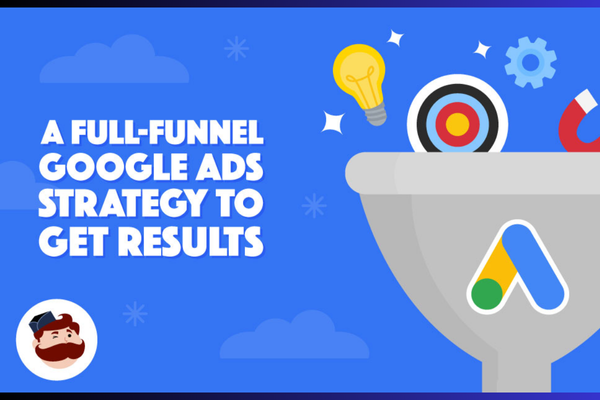
A marketing funnel is a strategic model that represents the different stages a potential customer goes through before making a purchase or completing a desired action. In the context of Google Ads campaign strategy, funnels play a vital role in organizing campaigns according to the customer journey—starting from creating awareness to driving conversions.

By understanding and applying funnel stages, advertisers can design campaigns with specific goals, messaging, and targeting to meet users where they are in their decision-making process. For businesses like Zara, Myntra, or Accosoft India, funnel-based strategies ensure that marketing budgets are spent efficiently and conversions are maximized across different customer touchpoints.

Understanding the Marketing Funnel

The funnel is typically divided into three main stages:

  1. Top of Funnel (TOFU) – Awareness

  2. Middle of Funnel (MOFU) – Consideration

  3. Bottom of Funnel (BOFU) – Conversion

Each stage reflects a level of user intent and readiness to purchase. Campaign strategies should be customized to match the needs, behavior, and expectations of users in each stage.

Top of Funnel (Awareness Stage)
Goal: Reach new audiences, increase visibility, build brand recognition.

Campaign Characteristics:
– Broader targeting (interests, demographics, affinity audiences)
– Content-driven or visually engaging ads
– Lower intent but larger audience reach
– Platforms: Display Network, YouTube, Discovery ads, Social Media

Google Ads Tactics:
Display Campaigns with eye-catching visuals
YouTube Ads to introduce your brand through storytelling
Performance Max with focus on reach and impressions
Custom affinity audiences to reach relevant but unaware users

Example: Zara launches a new sustainable fashion line. Using Display and YouTube ads, they create awareness among fashion-conscious users aged 20–35 who have previously shown interest in eco-friendly brands.


Middle of Funnel (Consideration Stage)
Goal: Educate, retarget, nurture interest, drive engagement.

Campaign Characteristics:
– Warm audiences (website visitors, social media followers, email subscribers)
– Comparison and product-focused messaging
– Emphasis on value propositions and benefits
– Campaign types: Search Ads, Remarketing, In-market audiences

Google Ads Tactics:
Remarketing Campaigns to re-engage visitors
In-Market Audiences for targeting users actively researching products
Search Campaigns for branded and mid-intent keywords
Video campaigns showing product benefits or testimonials

Example: Myntra notices users who visited but didn’t purchase. They retarget these users with Search and Display ads showing specific products or promo codes.


Bottom of Funnel (Conversion Stage)
Goal: Drive sales, generate leads, prompt specific high-value actions.

Campaign Characteristics:
– High-intent users (shopping cart abandoners, returning visitors, searchers of exact product names)
– Focused CTAs (Buy Now, Get a Quote, Book Demo)
– Conversion-oriented ad copy and offers
– Campaign types: Search, Shopping, Performance Max, Call Ads

Google Ads Tactics:
Shopping Campaigns to show product images and prices directly in search results
Dynamic Remarketing to show products users viewed previously
Search Campaigns with high-converting keywords
Performance Max optimized for conversions using smart bidding

Example: Accosoft India targets decision-makers searching for “best HR software for small business” with high-conversion landing pages and strong call-to-actions for demo bookings.


Full Funnel Strategy in Google Ads

A successful campaign strategy doesn’t focus on just one stage. Instead, it creates a full-funnel journey that:
– Attracts new audiences at the top
– Educates and engages in the middle
– Converts at the bottom

This can be executed using different campaign types, creatives, bidding strategies, and remarketing techniques.

Key Google Ads Tools Supporting Funnel Strategy:

Performance Max Campaigns: Automatically cover all funnel stages using automation and AI.
Remarketing Lists: Segment audiences by funnel stage (site visitors, cart abandoners, converters).
Custom Audiences: Target based on users’ interests or behaviors indicating funnel position.
Conversion Tracking: Measure macro (sales, leads) and micro (form views, add to cart) conversions for funnel movement.
Attribution Models: Understand how different touchpoints contribute across the funnel.


Example of a Funnel Strategy for Zara:

  1. Top Funnel:
    – YouTube ad showing the new summer collection
    – Display ad targeting fashion lovers aged 20–30

  2. Middle Funnel:
    – Remarketing campaign with product carousels
    – Search ads targeting “Zara women’s summer dresses”

  3. Bottom Funnel:
    – Shopping campaign for users searching “Zara yellow cotton dress”
    – Search ad with discount CTA: “Buy Now – 25% Off Summer Line”


Benefits of Using Funnels in Campaign Strategy

Budget Optimization: Allocate budgets more effectively based on user intent
Improved Targeting: Serve relevant ads to users at different decision-making stages
Higher Conversion Rates: Nurture users from awareness to action
Stronger Branding: Maintain consistent messaging through the entire journey
Better Reporting: Understand where users drop off and how to improve performance


Conclusion
Funnels play a fundamental role in campaign strategy by structuring your Google Ads efforts around the customer journey. Instead of treating every user the same, a funnel-based approach segments them by intent and delivers the right message at the right time. From building awareness with Zara’s fashion line to closing B2B sales for Accosoft India, using funnels ensures your campaigns are more strategic, cost-effective, and results-driven. By aligning each campaign with a funnel stage, you turn random clicks into repeat customers.

How to define micro and macro conversions?

Introduction
In digital marketing and Google Ads, conversions represent actions users take on your website or app that indicate engagement or value. These conversions are typically categorized into two types: macro conversions and micro conversions. Distinguishing between them is crucial for understanding your customer journey and optimizing your advertising efforts.

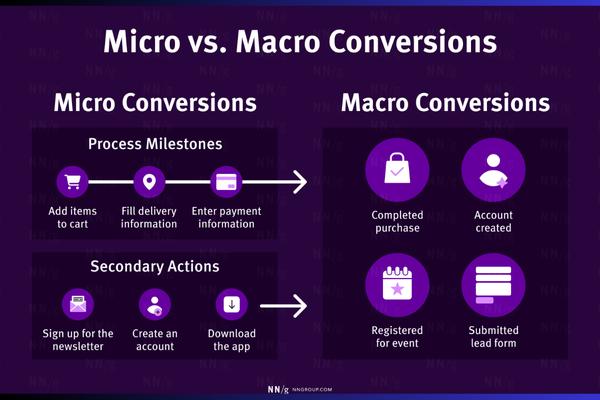
Macro conversions are your primary goals—the actions that directly contribute to your business revenue. Micro conversions are secondary actions that indicate a user’s interest or progress toward that primary goal.

Whether you’re running a fashion eCommerce site like Zara, a platform like Myntra, or a B2B service like Accosoft India, clearly defining your micro and macro conversions helps you better track, optimize, and report on your marketing performance.

What Are Macro Conversions?
Macro conversions are the main objectives of your website or app. These are the end-goals that reflect business success and usually involve a completed transaction or a major business milestone.

Examples of macro conversions:
– Purchase completed (e.g., buying a dress on Zara)
– Requesting a demo (e.g., Accosoft India SaaS software)
– Submitting a lead form
– Subscription payment
– App install (for app-based businesses)
– Booking a service

Business goal examples by brand:
Zara: A user buys a jacket → macro conversion
Myntra: A user places an order via the mobile app → macro conversion
Accosoft India: A company books a product demo → macro conversion

These actions typically represent the final step in your marketing or sales funnel and have the highest value for your business.

What Are Micro Conversions?
Micro conversions are smaller, preliminary actions users take that indicate engagement, interest, or movement toward a macro conversion. They may not generate direct revenue but are important for understanding user behavior and intent.

Examples of micro conversions:
– Viewing a product or service page
– Adding items to cart
– Signing up for a newsletter
– Downloading a brochure or eBook
– Clicking on “Get a Quote” or “Contact Us”
– Watching a product video
– Spending more than X minutes on site
– Creating an account or logging in

Business goal examples by brand:
Zara: A user clicks “Add to Cart” but doesn’t purchase → micro conversion
Myntra: A user installs the app but doesn’t place an order → micro conversion
Accosoft India: A visitor downloads a whitepaper → micro conversion

These conversions are essential for nurturing leads and understanding the user journey toward your macro goals.


Why You Need Both Micro and Macro Conversions

  1. Full Funnel Tracking
    Macro conversions only show end-results. Micro conversions show how users get there. Together, they paint a complete picture of user behavior.

  2. Better Optimization
    If macro conversions are low, but micro conversions are high, it tells you that users are engaging but dropping off. You can then optimize checkout flows, forms, or follow-up campaigns.

  3. More Data for Learning
    Google Ads’ machine learning uses conversions to optimize bidding. By tracking micro conversions, especially when macro conversions are limited, you feed more data to Google for smarter optimization.

  4. Identify Drop-Off Points
    You can analyze which micro conversions occur before drop-off. For example, many users may add products to their cart but never complete the checkout. That insight helps you fix cart abandonment issues.


How to Define Micro and Macro Conversions in Google Ads or Analytics

Step 1: Define Your Business Goals
Ask yourself:
– What is the main action I want users to take?
– What are smaller actions that indicate interest or progress?

Step 2: List Key Conversions by Funnel Stage
Top of Funnel (Awareness & Interest):
– Page views
– Time on site
– Newsletter sign-ups
– Video views
(Usually micro conversions)

Middle of Funnel (Consideration):
– Add to cart
– Download guide
– Contact click
(Micro conversions)

Bottom of Funnel (Decision):
– Purchase
– Demo booking
– Final form submission
(Macro conversions)

Step 3: Implement Tracking
Set up conversion tracking using Google Ads or Google Analytics. For each conversion action:
– Mark whether it’s a primary (macro) or secondary (micro) goal
– Use Google Tag Manager or event tracking for custom actions
– In Google Ads, only use macro conversions for smart bidding (by default)

Step 4: Use Conversion Goals in Campaigns
When setting up a campaign in Google Ads, select the primary conversion actions you want it to optimize for (usually macro conversions). Still, track micro conversions to help understand the overall user journey.


Examples of Micro vs Macro Conversions in Different Industries

Ecommerce (Zara, Myntra)
– Macro: Product purchase, cart checkout completed
– Micro: Add to cart, view size guide, product filter used, video viewed

B2B (Accosoft India)
– Macro: Contact form submitted, demo booked
– Micro: Case study downloaded, pricing page viewed, email subscribed

Education/Coaching
– Macro: Course enrolled
– Micro: Webinar watched, syllabus downloaded

Real Estate
– Macro: Booking site visit or enquiry form
– Micro: Property brochure download, EMI calculator used

Conclusion
Defining micro and macro conversions is essential to building effective digital marketing strategies. While macro conversions reflect direct business success, micro conversions are the steps users take along the path. By tracking both, you gain a clearer view of user intent, identify friction points in your funnel, and feed more meaningful data into platforms like Google Ads and Analytics. Whether you’re running an eCommerce platform like Myntra, a retail brand like Zara, or a SaaS solution like Accosoft India, proper conversion tracking empowers smarter decisions, better optimizations, and ultimately—greater return on ad spend.

What are business goals in campaign setup?

Introduction
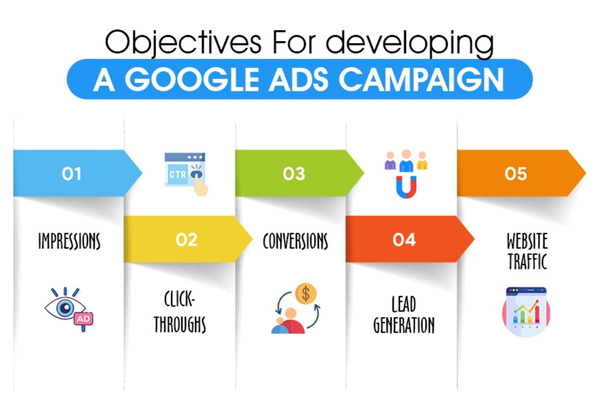
Business goals in Google Ads campaign setup are the specific objectives that guide how your ads should be structured, targeted, optimized, and measured. When you create a new campaign in Google Ads, you’re asked to select a goal such as sales, leads, website traffic, brand awareness, app promotion, or product consideration. This selection isn’t just for organization—it directly impacts the recommendations Google makes, the ad formats available, bidding strategies suggested, and how success is tracked.

Whether you’re a B2B company like Accosoft India, an online fashion retailer like Zara, or a multi-category eCommerce brand like Myntra, setting clear business goals ensures your campaign aligns with your broader marketing strategy and delivers the outcomes your business actually needs.

Why Business Goals Matter
– They help Google Ads recommend the most suitable campaign types and settings
– They determine the bidding strategies you’ll use (e.g., conversions, clicks, views)
– They influence the ad assets and extensions you create
– They define how performance will be measured
– They keep your campaigns focused on delivering results that matter

Types of Business Goals in Google Ads Campaign Setup

  1. Sales
    This goal is focused on driving online purchases, phone sales, in-app sales, or in-store transactions.
    Best for: E-commerce websites, retail chains, and product-based businesses like Myntra and Zara.
    Campaign types: Search, Display, Shopping, Video, Performance Max
    Bidding strategy: Maximize Conversions, Target ROAS

Example: Zara runs a campaign with a “Sales” goal to promote their end-of-season sale. Their campaign optimizes for purchases directly from their website.

  1. Leads
    This goal aims to generate actions like form submissions, quote requests, calls, sign-ups, or demo bookings.
    Best for: Service-based businesses, software companies, B2B models like Accosoft India
    Campaign types: Search, Display, Video, Performance Max
    Bidding strategy: Maximize Conversions, Target CPA

Example: Accosoft India wants more software demo bookings. They set up a lead-generation campaign focused on form submissions.

  1. Website Traffic
    This goal is about increasing visits to your site, especially to introduce users to your brand or product.
    Best for: Content marketers, startups, and brands launching a new service or product
    Campaign types: Search, Display, Video, Discovery
    Bidding strategy: Maximize Clicks

Example: Myntra launches a new collection for men and wants more people to visit that page. They run a traffic campaign directing users to that landing page.

  1. Product and Brand Consideration
    This goal helps influence people who are researching or comparing products to consider your offering.
    Best for: Brands in competitive markets, or for product launches
    Campaign types: Video, Display, Discovery
    Bidding strategy: CPV (Cost per View), CPM (Cost per 1,000 impressions)

Example: Zara introduces a new sustainable clothing line. They want users to consider it while shopping, so they run a YouTube campaign focused on product consideration.

  1. Brand Awareness and Reach
    The focus is to increase exposure, build recognition, and stay top-of-mind for customers.
    Best for: New brands, rebrands, or entering new markets
    Campaign types: Display, Video, Discovery
    Bidding strategy: CPM, Viewable CPM, CPV

Example: Myntra enters a new region and wants people to recognize their brand. They run a Display campaign to boost reach.

  1. App Promotion
    This goal is used to drive installs or engagement with your mobile app.
    Best for: Companies with Android or iOS apps (e.g., fashion, banking, food delivery apps)
    Campaign types: App campaign
    Bidding strategy: Target CPA, Maximize Installs

Example: Zara promotes its shopping app to increase downloads and app-based purchases during a festival sale.

  1. Local Store Visits and Promotions
    This goal helps drive in-store visits or engagement with physical locations.
    Best for: Retail stores, restaurants, car dealerships
    Campaign types: Local campaign, Performance Max
    Bidding strategy: Maximize conversion value

Example: Myntra opens a pop-up store in Mumbai and uses local campaigns to drive walk-ins with store directions and special offers.

  1. Create a Campaign Without a Goal’s Guidance
    This option gives you full manual control over the campaign without any pre-set optimization strategies.
    Best for: Advanced advertisers, agencies, or when you have custom tracking and bidding in place
    Campaign types: Any
    Bidding strategy: Manual CPC, custom smart bidding, etc.


How to Choose the Right Business Goal

  1. Define What Success Means
    – If it’s purchases, choose Sales
    – If it’s new leads, choose Leads
    – If it’s site visits, choose Website Traffic
    – If you’re building awareness, choose Brand Awareness or Product Consideration
    – If you want more app users, go for App Promotion

  2. Match the Goal with the Funnel Stage
    – Awareness: Brand awareness and reach
    – Consideration: Website traffic, product consideration
    – Conversion: Leads, sales, app installs

  3. Align with Business KPIs
    Your goal should reflect your business’s current priorities—whether that’s increasing monthly revenue, getting more demo requests, reducing cost per lead, or launching a product.

  4. Understand Your Audience’s Intent
    Choose a goal based on what users are likely to do. If they’re already searching for your products, focus on Sales or Leads. If they’re just browsing, focus on Consideration or Awareness.


Conclusion
Choosing the right business goal during Google Ads campaign setup is a foundational step that determines how your entire campaign is structured and optimized. It affects your bidding strategy, the ad formats you use, the audiences you target, and how success is measured. Whether you’re Zara running a product launch, Myntra targeting mobile app installs, or Accosoft India trying to generate B2B leads, your campaign should always start with a clear, well-aligned business goal. This ensures every click, impression, and conversion brings you closer to achieving what matters most for your brand.

What is segmentation in reports?

Introduction
Segmentation in Google Ads reports refers to the process of breaking down your data into smaller, more specific parts to better understand how different elements of your campaign are performing. Instead of viewing performance at a broad level—like just clicks or conversions—segmentation allows you to analyze data by time, device, location, audience, ad type, and many other variables. For businesses like Myntra, Zara, or Accosoft India, segmentation provides powerful insights into what’s working and where to optimize.

For example, Zara might run a campaign that performs well overall, but after segmenting by device, they find out that mobile users are converting much better than desktop users. This kind of insight allows for smarter ad targeting and budget allocation.

Why Segmentation Matters
– Reveals hidden performance patterns
– Helps identify opportunities to improve targeting
– Enables smarter bidding and budget decisions
– Uncovers which combinations (e.g., ad + device + time) drive conversions
– Enhances campaign optimization based on real behavior

Types of Segmentation in Google Ads Reports

1. Time-Based Segmentation
Breaks down performance data by:
– Hour of the day
– Day of the week
– Day
– Week
– Month
– Quarter
– Year

Use case: Myntra could segment their report by day of week to find that Sundays get the highest conversion rates during sale events.

2. Device Segmentation
Shows how your ads perform on different devices:
– Mobile
– Tablet
– Desktop

Use case: Zara may notice mobile ads have lower CPC and higher conversion rate, suggesting they should increase mobile bids.

3. Geography Segmentation
Allows you to analyze data by:
– Country
– Region
– City

Use case: Accosoft India could segment by city to see that Bangalore produces higher-quality leads than Delhi, helping them adjust targeting and budget.

4. Network Segmentation
Breaks down performance by:
– Google Search
– Search Partners
– Display Network
– YouTube

Use case: A fashion brand like Zara might find that Search Network campaigns deliver more direct sales, while Display works better for brand awareness.

5. Conversion Action Segmentation
Separates performance data based on the specific conversion types you’ve set up:
– Purchase
– Newsletter sign-up
– App install
– Demo request
– Phone call

Use case: Accosoft India runs a campaign where both demo sign-ups and eBook downloads count as conversions. Segmenting by conversion action shows which ad groups are driving which type of lead.

6. Audience Segmentation
Shows how different audiences engage with your ads:
– Affinity audiences
– In-market audiences
– Remarketing lists
– Custom audiences

Use case: Myntra can see if new visitors (prospecting) or remarketing lists are generating better returns during Diwali sales.

7. Click Type Segmentation
Tells you whether users clicked on:
– Headline
– Sitelink
– Call extension
– Image or product card

Use case: Zara could segment by click type and discover that sitelinks are driving 25% of the campaign’s traffic—so they can invest in better sitelink copy.

8. Search Term Segmentation
Shows the actual search queries that triggered your ads.
Use case: Accosoft can segment by search terms to find high-intent B2B queries like “HR software for small business” and add them as keywords.

9. Ad Format Segmentation
Breaks down data by ad types like:
– Responsive Search Ads
– Expanded Text Ads
– Performance Max creatives
– Shopping ads
– Video ads

Use case: Zara may compare how different formats are performing across mobile vs desktop.

10. Top vs. Other Segmentation
Shows whether your ads appeared on top of the SERP (above organic results) or elsewhere.
Use case: If Myntra notices higher CTR and lower CPA from top placements, they might increase their bid strategy for premium placement.

How to Apply Segmentation in Google Ads

  1. Go to any Google Ads campaign, ad group, or keywords tab.

  2. Click the “Segment” button (above your table view).

  3. Choose what to segment by: Time, Device, Conversion action, etc.

  4. The data in your table will now be split based on the selected segment.

  5. Analyze and compare the segmented data to draw insights.

Tips for Effective Segmentation
– Don’t segment too many dimensions at once or it may get confusing
– Always compare segmented results with your KPIs (like CPA, ROAS, conversion rate)
– Use time-based segmentation to uncover seasonal or daily trends
– Segment conversions by action to evaluate lead quality
– Regularly monitor device performance to adjust bid modifiers

Conclusion
Segmentation in reports is an essential feature in Google Ads that empowers advertisers to go beyond surface-level data. Instead of just knowing whether a campaign is working, segmentation helps you understand why it’s working, who it’s working for, and how to improve it further. Whether you’re analyzing performance across devices, locations, or conversion actions, segmentation gives you the granular insight needed to make smarter marketing decisions. For data-driven businesses like Zara, Myntra, or Accosoft India, using segmentation means spending smarter and earning better results.

How to build custom reports?

Introduction
Custom reports in Google Ads allow you to analyze campaign performance in ways that standard reports might not offer. They give you the flexibility to view only the metrics you care about, broken down by the dimensions (like device, audience, campaign, keyword) that matter to your business goals. Whether you’re managing a large fashion brand like Zara, a multi-category eCommerce store like Myntra, or a B2B platform like Accosoft India, building custom reports helps you focus on what drives results—without having to export and filter data manually each time.

Why Use Custom Reports?
– Focus only on the metrics that align with your KPIs
– Track performance for specific campaigns, ad groups, or audiences
– Create dashboards for specific departments (sales, marketing, PPC)
– Monitor trends and performance over time
– Share or schedule automatic reports with stakeholders

Step-by-Step: How to Build a Custom Report in Google Ads

Step 1: Sign in to Google Ads
Go to ads.google.com, sign in with your Google account, and access the account for which you want to create a report.

Step 2: Go to the Report Editor
– In the top-right corner, click on the “Reports” icon (it looks like a bar chart).
– Select “Custom” and then click “+ Custom Report” or “Custom Table.”

The Report Editor interface will open, giving you a drag-and-drop layout builder.

Step 3: Choose the Type of Report
– Table (default and most common)
– Line chart (for time-based trends)
– Bar chart (to compare categories like campaigns or devices)
– Pie chart (to show proportions)
– Scatter plot (to compare two metrics, e.g., CPC vs CTR)

You can also build dashboards with multiple visual components later.

Step 4: Add Dimensions and Metrics
Dimensions are the categories you want to break your data down by. Examples include:
→ Campaign
→ Ad group
→ Device
→ Location
→ Keyword
→ Audience

Metrics are the data points or numbers you want to measure. Examples include:
→ Clicks
→ Impressions
→ Conversions
→ Cost
→ CTR (click-through rate)
→ CPC (cost per click)
→ Conversion value

Example for Zara
If Zara is running Google Ads for different seasonal campaigns like “Winter Collection” and “Summer Sale,” they can build a custom report with:
Dimensions: Campaign, Device
Metrics: Clicks, Conversions, Cost, ROAS
This lets them compare campaign performance across desktop vs mobile and understand which season performs better.

Step 5: Apply Filters
Use filters to narrow down your report data to what’s most relevant. Examples:
– Show only campaigns that include “Sale”
– Filter for conversions > 0
– Include only device = mobile
– Exclude campaign types like Display if you only want Search campaign data
– Filter by time (last 30 days, this month, custom date range)

Step 6: Sort and Customize
You can sort your data based on any metric—for example:
– Sort by highest cost
– Sort by lowest CPA
– Sort by best performing ROAS

You can also:
– Rename columns
– Add calculated metrics (e.g., ROAS = conversion value / cost)
– Apply conditional formatting (highlight rows that have a CPA above ₹1000)

Step 7: Save and Share the Report
Once you’re happy with your report:
– Click the “Save” button in the top-right corner
– Name your report clearly (e.g., “Myntra Search Campaign Performance – Q2”)
– Choose whether to share with other users on the account
– You can also click “Download” to export as Excel, PDF, or CSV

Step 8: Schedule Reports via Email (Optional)
– Click “Schedule email”
– Choose daily, weekly, or monthly frequency
– Enter the recipient emails
– Add a message if needed
– This is perfect for automated reporting to clients or internal teams

Example for Myntra
If Myntra wants a weekly email showing top-performing categories, they could:
– Create a table report filtered by product category and campaign
– Use metrics: Clicks, Cost, Conversion value, CPA
– Schedule it every Monday to send to the marketing team

Tips for Building Better Custom Reports
– Always align the report with a business goal (e.g., reducing CPA, increasing ROAS)
– Group related metrics together (costs, conversion metrics, engagement metrics)
– Use consistent naming conventions across campaigns and ad groups to simplify filtering
– Don’t overcrowd your report—focus on the top 5–7 metrics for clarity
– Test different visual types (charts, bars, pie) for clearer presentation of data trends

Use Cases by Business Type

For Zara (Fashion Retail)
– Compare campaign performance across regions (Delhi vs Mumbai vs Bangalore)
– Identify which ad creatives convert better for different gender segments
– Track mobile vs desktop conversion value during seasonal sales

For Myntra (Ecommerce Marketplace)
– Analyze high-performing product categories and brands
– Monitor top search terms driving conversions
– Break down performance by audience type (new users vs returning)

For Accosoft India (B2B Software)
– Report on which keywords generate demo signups
– Track ad group performance across different service modules
– Monitor long-term lead generation trends from Google Search ads

Conclusion
Custom reports in Google Ads give you full control over how you view and interpret your advertising performance. Instead of relying on generic reports that may not answer your most important questions, you can build reports that are laser-focused on the goals of your business. Whether you’re trying to understand which campaign drives the most leads, which device converts best, or how your cost per acquisition varies by location, custom reports provide the insight and flexibility you need. With features like filters, calculated metrics, scheduling, and sharing, they are an essential tool for every marketer looking to optimize Google Ads results with clarity and precision.

How to Become a Digital Marketing Specialist

Digital marketing is one of the fastest-growing fields today. Many people are interested in building a career in digital marketing, and becoming a digital...

What is SMM in Digital Marketing

SMM, or Social Media Marketing, is one of the most important parts of digital marketing. In simple words, SMM is the process of using...

What is Google Analytics in Digital Marketing

Google Analytics is one of the most important tools in digital marketing. It helps businesses understand how people interact with their websites and online...

What is Google AdWords in Digital Marketing

Google AdWords is one of the most important tools in digital marketing. Many businesses use AdWords to reach their target audience online and increase...

What Is CPM in Digital Marketing

In digital marketing, understanding how your ads are priced and measured is very important. Different advertising models help marketers track performance and control spending....